 Highlightly Team
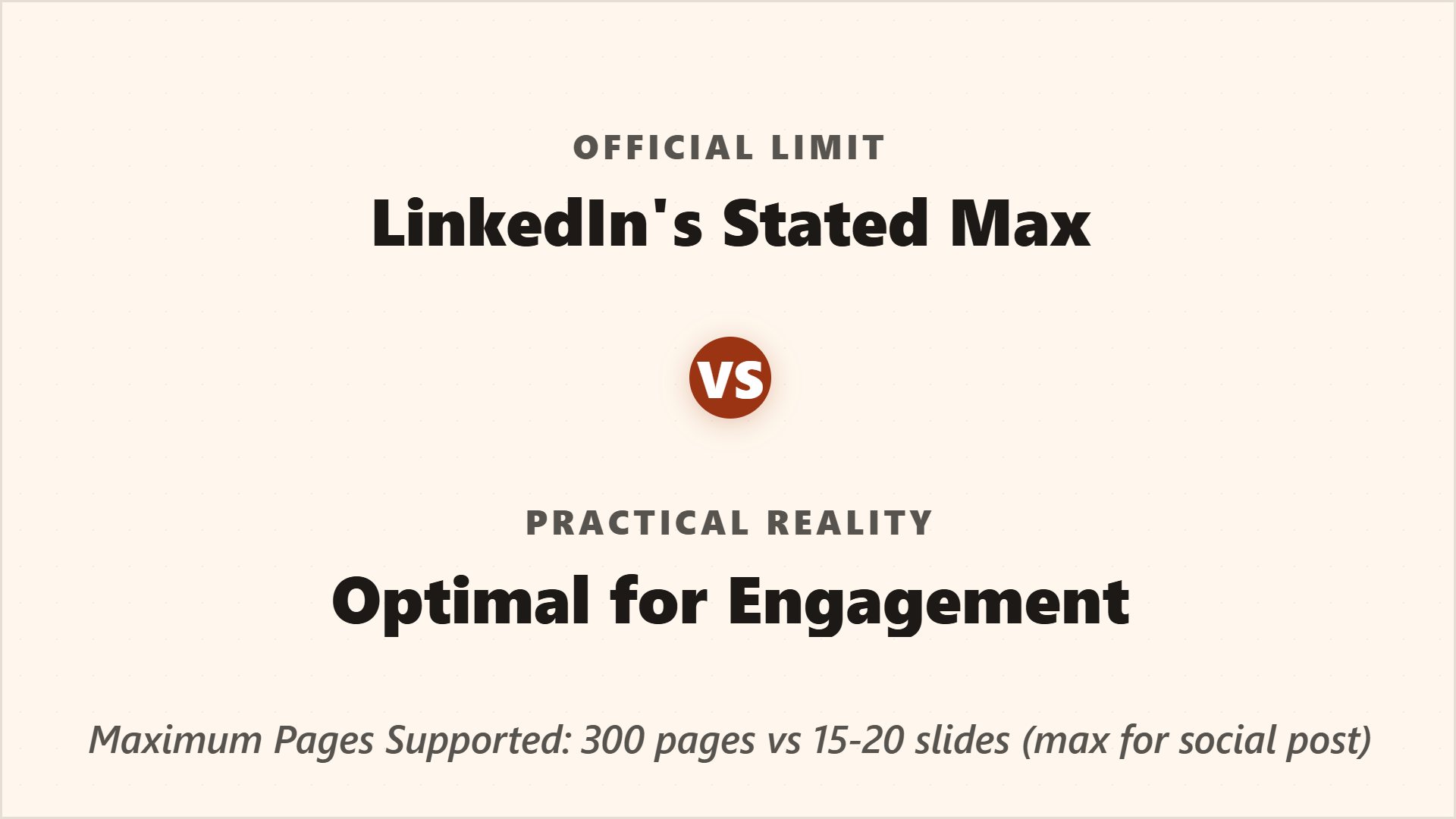
The official LinkedIn document limits are generous. Your audience is not.
A carousel can technically contain a lot of pages, but a social feed is not where people volunteer to read a deck. The practical question is sharper: how many slides do you need to deliver one useful idea without exhausting the reader?
Quick answer
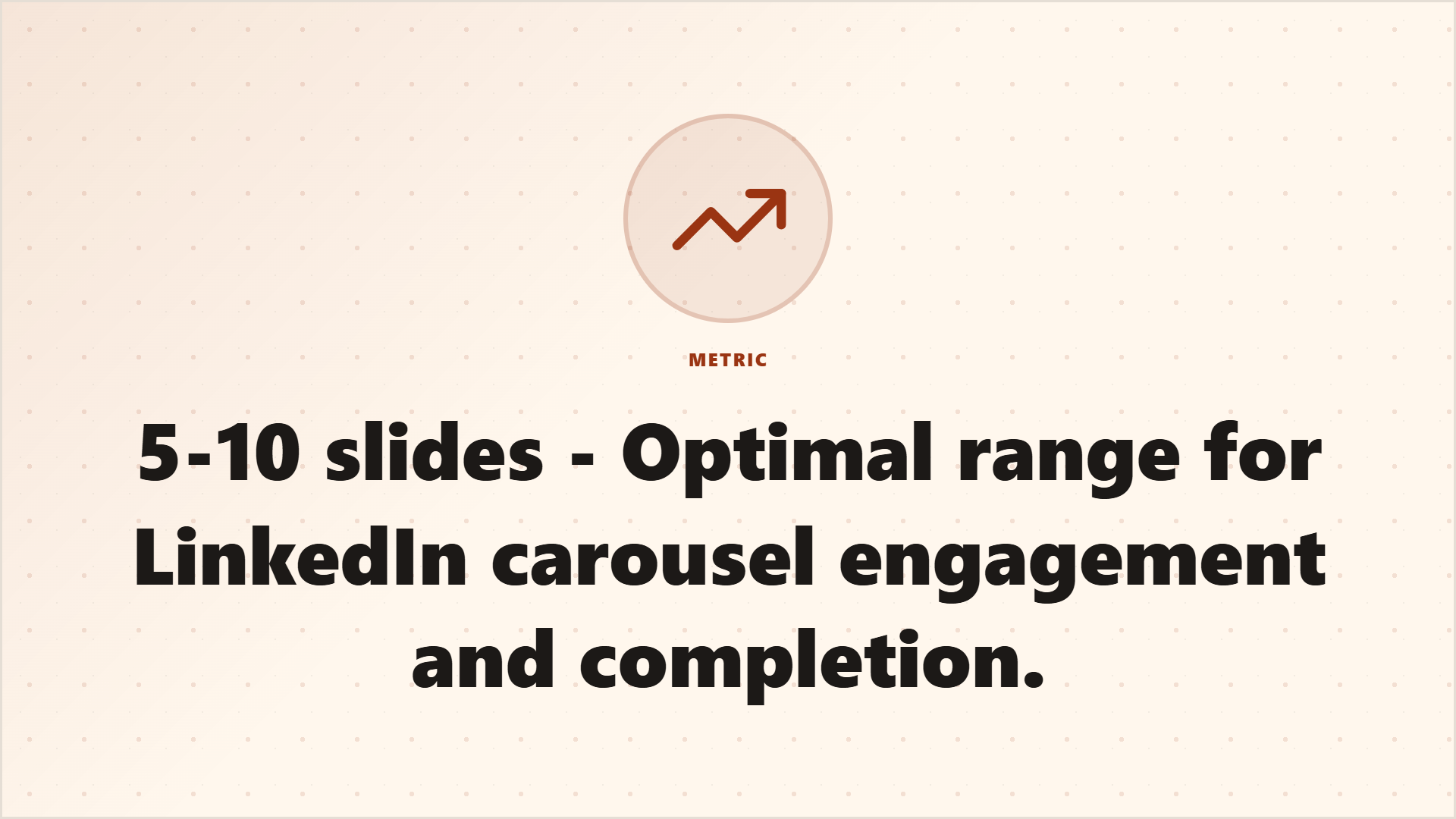
Use 5-10 slides for most LinkedIn carousels
Five to ten slides is the best default range because it gives you room for a hook, context, evidence, breakdown, example, takeaway, and CTA without turning the post into a document dump.
Slide count by carousel type
Slide count decision
Use the 5/7/9 slide mental model.
This section visualizes carousel length as an editorial decision: quick ideas need fewer slides, while proof-led stories need a little more room.
Decision rule
Slide count follows cognitive load
Do not choose a slide count because someone on LinkedIn said 7 is magic. Choose it based on how hard the idea is to understand. A simple checklist may need five slides. A research-backed argument may need nine. A dense report probably needs multiple carousels, not one giant one.
Every slide should advance the argument.
If a slide repeats the previous point, cut it. If a slide contains two separate ideas, split it. If the source is too long, create multiple focused carousels instead of one exhausting deck.
Structure
A strong 7-slide LinkedIn carousel structure
Seven-slide default structure
Hook
Name the pain, promise, or surprising claim.
Context
Explain why the topic matters now.
Proof
Use a source-backed quote, stat, screenshot, or example.
Breakdown
Turn the idea into a framework, list, or steps.
Example
Show what the idea looks like in practice.
Takeaway
Compress the lesson into a saveable line.
CTA
Ask for a comment, save, share, or next action.
First slides
The first three slides decide completion
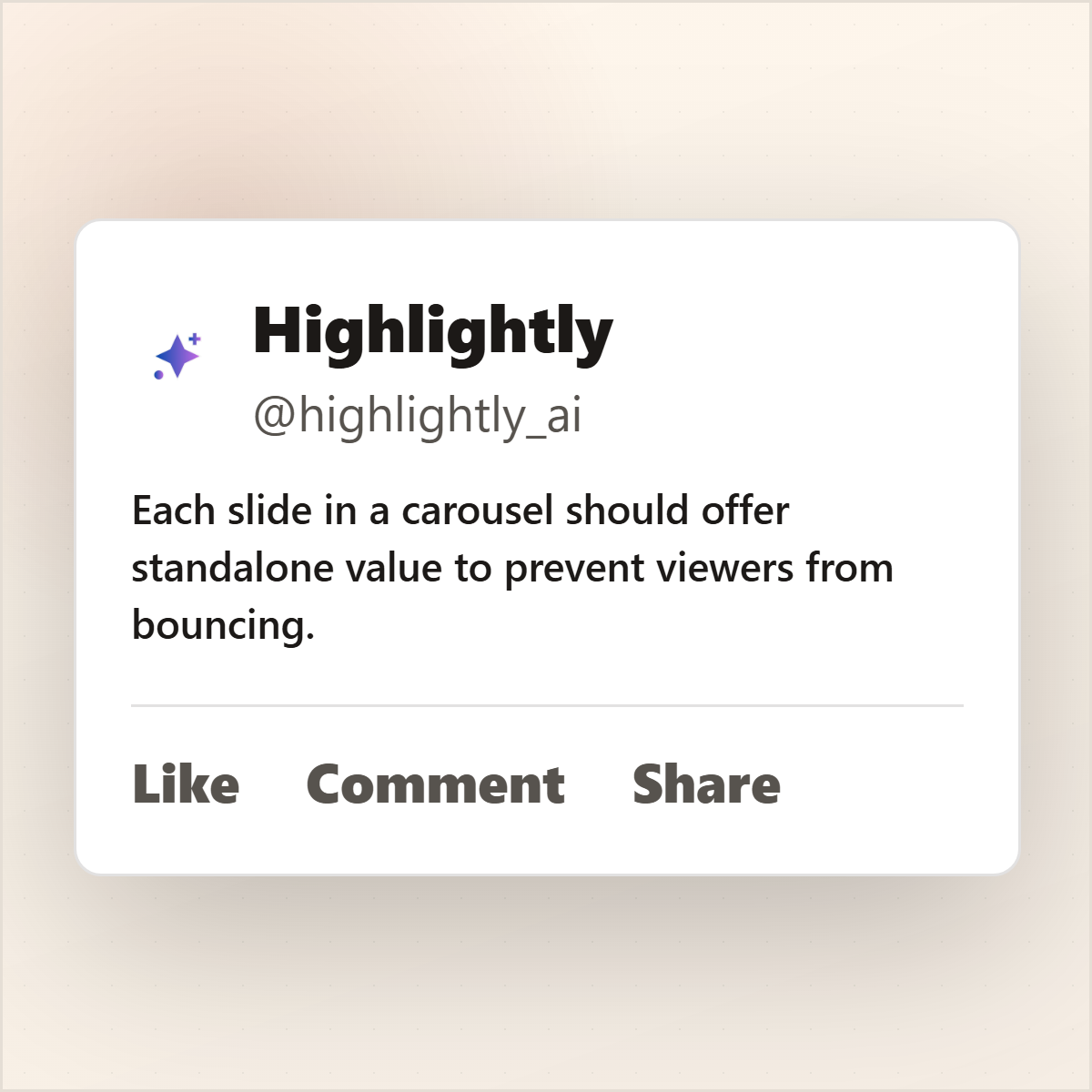
Slide one earns the first swipe. Slide two proves the carousel is not bait. Slide three tells the viewer whether the rest will be worth finishing. If those first three slides feel vague or repetitive, slide count optimization will not save the post.
Carousel builder
Generate the sequence, then cut the filler.
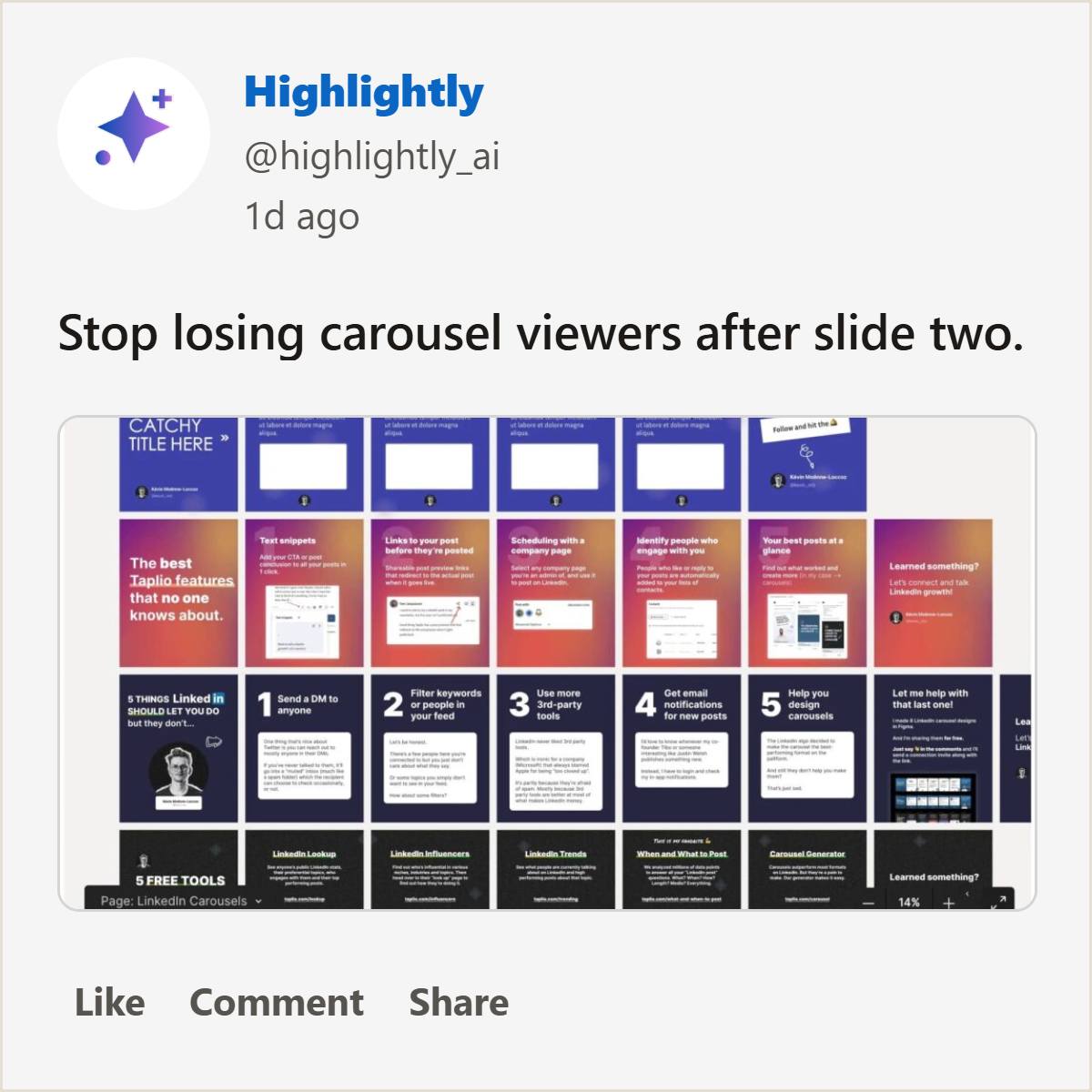
Highlightly gives you a first carousel draft from the source. The editing job is deciding which slides actually advance the argument.

Signs you have too many slides
- Two slides say almost the same thing.
- A transition slide exists only to fill space.
- The carousel explains side topics instead of the original promise.
- The source has multiple arguments that should become separate carousels.
- You cannot describe the job of each slide in one sentence.
Highlightly workflow
Generate first, then edit like a ruthless human
Highlightly can take a source and create a first carousel structure from extracted hooks, key points, quotes, stats, and takeaways. That saves the blank-page work. But the human job remains important: cut weak slides, merge repeated ideas, and make sure the final sequence delivers on the cover slide.
Blank canvas vs source-first carousel building
Build the draft
Turn one source into a focused carousel sequence.
Paste an article, report, or transcript into Highlightly, generate the first carousel, then cut every slide that does not advance the argument.
Try the carousel toolThe right slide count is the shortest sequence that keeps the promise.
Most LinkedIn carousels should live in the 5-10 slide range. The real goal is not a magic number. It is completion, clarity, and a final slide that gives the reader a reason to engage.
- Use 5-7 slides for quick ideas.
- Use 7-10 slides for deeper arguments.
- Split long sources into multiple carousels.
Frequently asked questions
Research sources