 Highlightly Team
A LinkedIn document post is not just a PDF upload. It is a tiny editorial product that has to earn a swipe, slide by slide.
That distinction matters. A document can technically be long, dense, and complete. A feed carousel should be clear, visual, and selective. The goal is not to upload everything you know. The goal is to turn one useful source-backed idea into a sequence people can finish.
Definition
What is a LinkedIn document post?
A LinkedIn document post is a post with an uploaded file that LinkedIn displays as a swipeable document viewer. In creator language, this is usually called a LinkedIn carousel.
LinkedIn document post specs to know
Document post checklist
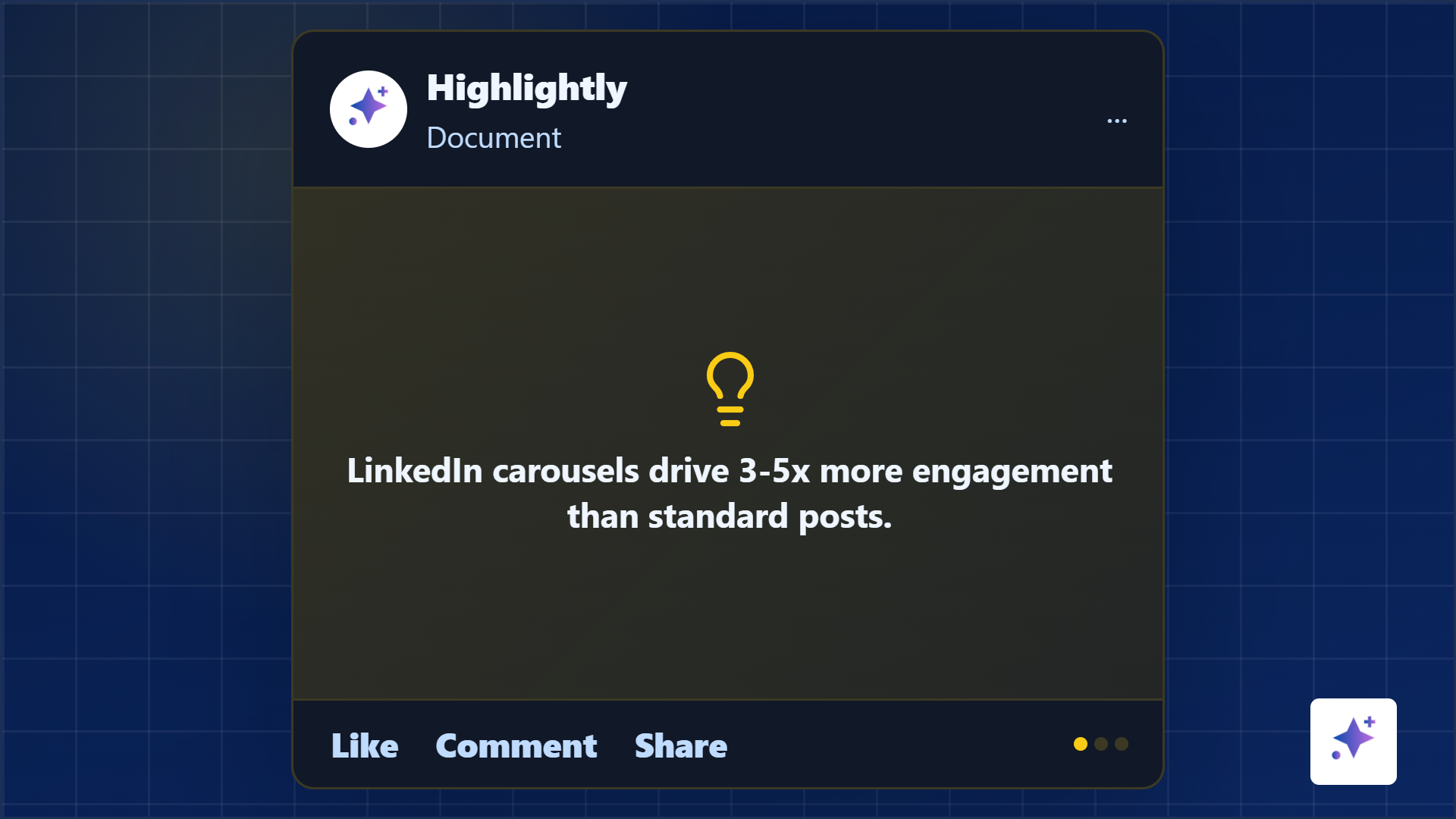
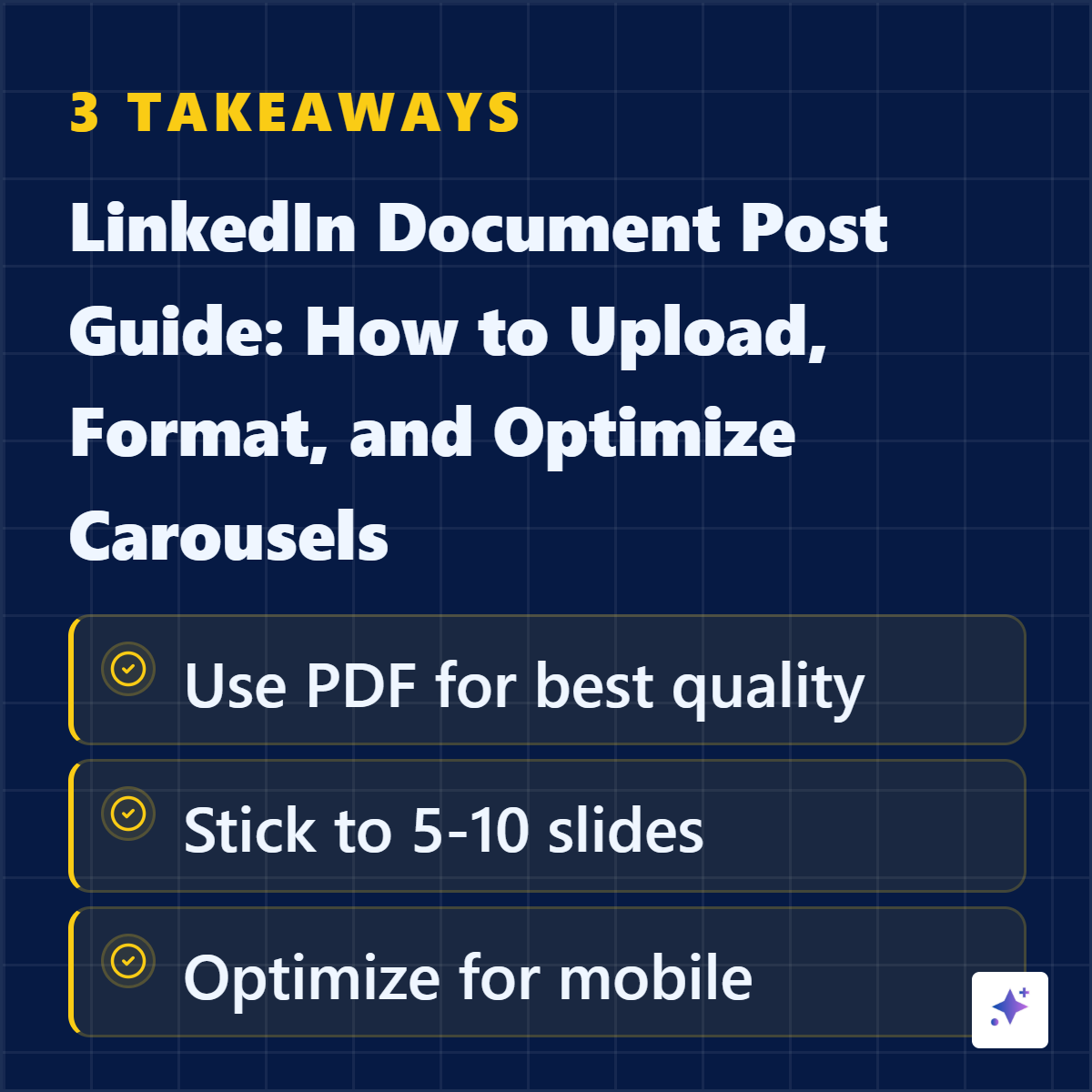
Turn a document upload into a feed-native carousel.
The graphic highlights the practical carousel job: clear hook, consistent slides, mobile readability, and visible source context.
Structure
The slide sequence that works for most LinkedIn carousels
A simple 7-slide document post structure
Hook
Make a specific promise or name a sharp problem.
Stakes
Explain why the reader should care now.
Evidence
Show the source-backed quote, stat, screenshot, or example.
Breakdown
Turn the idea into steps, criteria, or a framework.
Example
Show what it looks like in practice.
Takeaway
Compress the lesson into a saveable line.
CTA
Ask for a comment, save, share, or next action.
One slide, one job.
If a slide has two separate ideas, split it. If two slides repeat the same idea, merge them. A document post should feel like a clean argument, not a pasted article.
Design
Design the slides for a thumb, not a desktop monitor
Most LinkedIn carousel viewing happens on mobile-sized screens. That means headline text needs to be big, body copy needs to be short, and each slide needs enough whitespace to make the next swipe feel inviting.
Avoid these common document post mistakes
- Turning each slide into a paragraph from the original article.
- Using tiny source lines that disappear on mobile.
- Mixing slide sizes across the same PDF.
- Using a vague first slide that does not explain why someone should swipe.
- Ending without a takeaway, question, or next action.
Product workflow
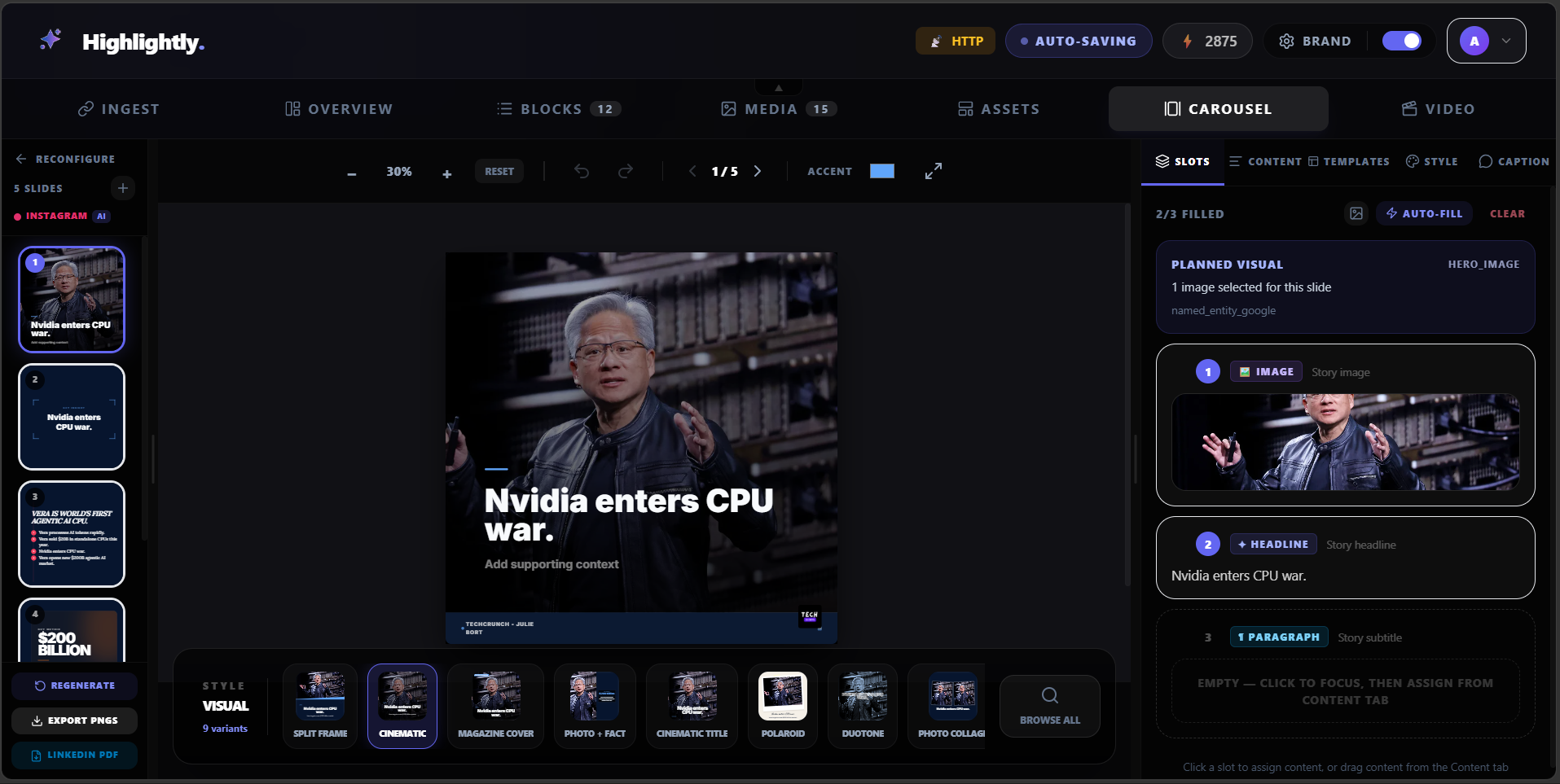
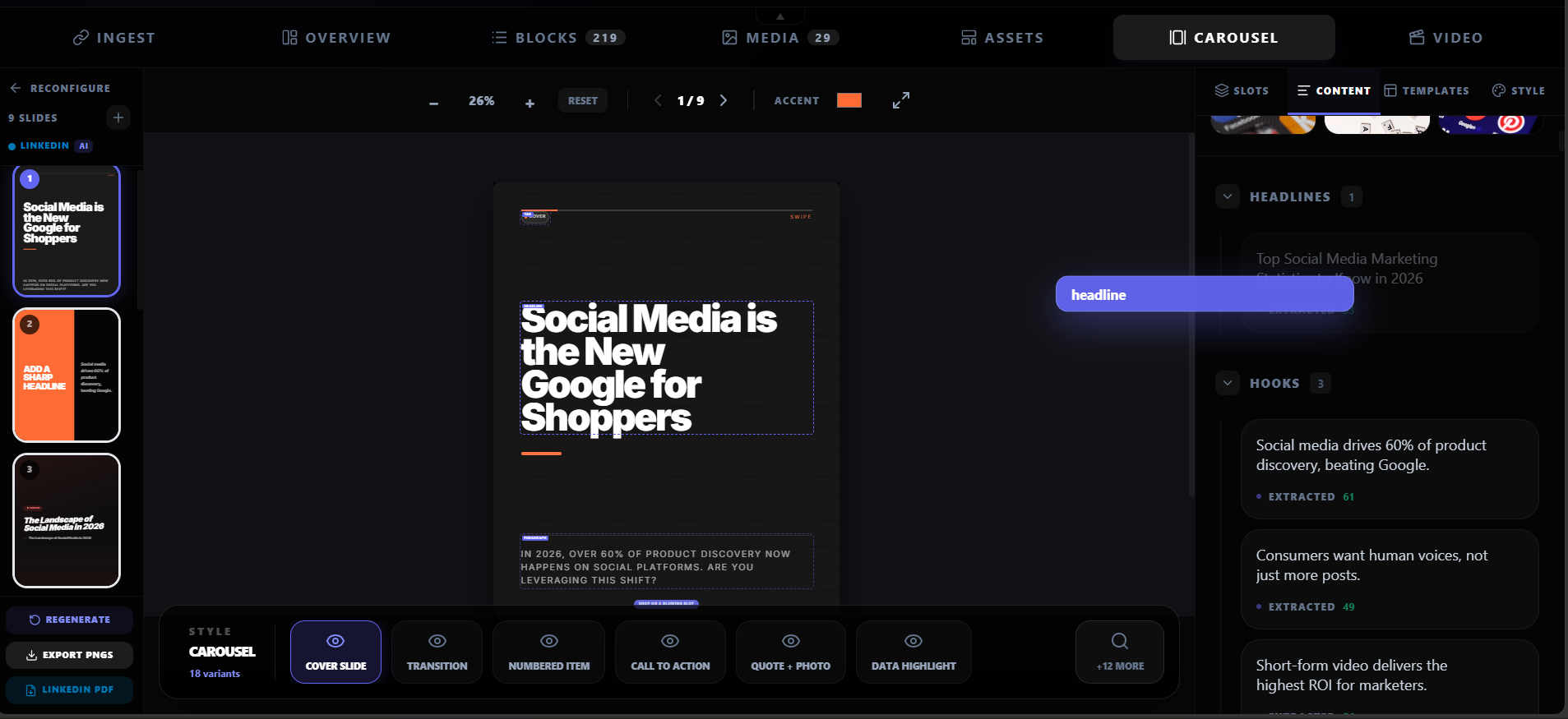
Highlightly builds the slide sequence before you export.
Use the carousel builder to turn extracted source material into a structured sequence, then export it for LinkedIn.
Workflow
Build the carousel from a source, not from vibes
The best LinkedIn document posts usually start from something real: a report, research paper, blog post, transcript, customer story, or product insight. That source gives the carousel a reason to exist.
Manual carousel creation vs Highlightly
Publishing
How to upload a LinkedIn document post
Upload workflow
Export the slides as a PDF
Flatten the design and make sure every page has the same dimensions.
Start a LinkedIn post
Choose the document upload option and select your file.
Add a clear document title
The title helps the viewer understand what they are opening.
Write the caption
Use the first two lines to make the swipe feel worth it, then add context or a question.
Preview before posting
Check the first slide, mobile readability, source line, and final CTA.
Build the carousel
Turn one source into a LinkedIn document post.
Use Highlightly to extract the strongest points, create carousel slides, keep attribution visible, and export a feed-ready asset set.
Create a carouselA LinkedIn document post is a focused argument, not a dumped file.
Keep it short, make every slide earn the swipe, and start with a real source so the carousel has proof behind it.
- Use PDF for predictable rendering.
- Design for mobile readability.
- Build from a source-backed idea.
Frequently asked questions
Research sources