How do I create a slideshow or PPT-style post on LinkedIn?
To create a slideshow or PPT-style post on LinkedIn, make a short slide sequence, export it as a PDF or supported document, then upload it as a LinkedIn document post. People also call this a LinkedIn carousel, swipe post, slide post, or PDF post. It works best when the post has one clear hook, one idea per slide, and a source-backed reason to keep swiping.
The useful workflow is extraction first, packaging second: find the strongest source-backed material, decide what it proves, then turn it into the format people can actually read in-feed.
A source-backed carousel is a sequence, not a chopped-up summary.
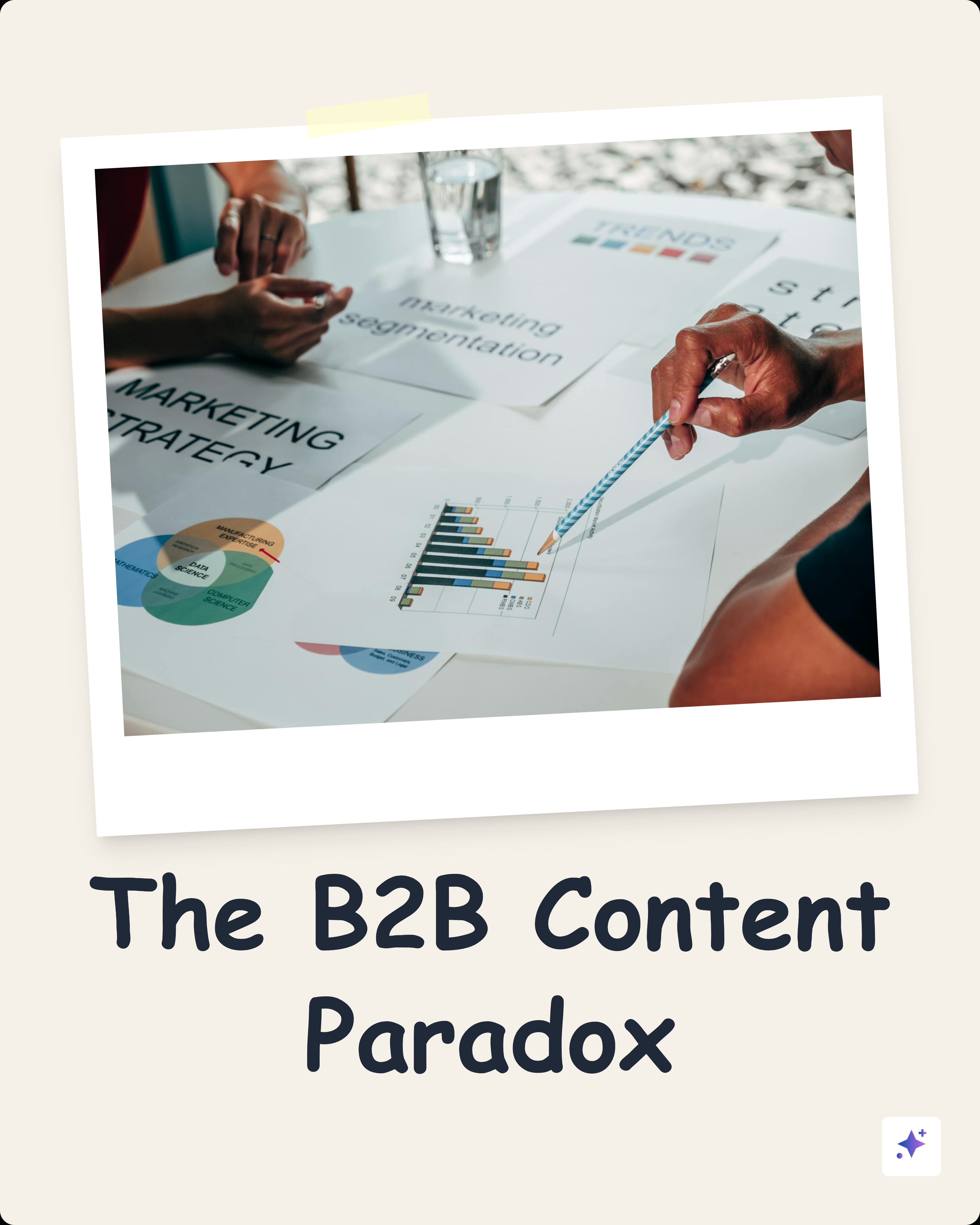
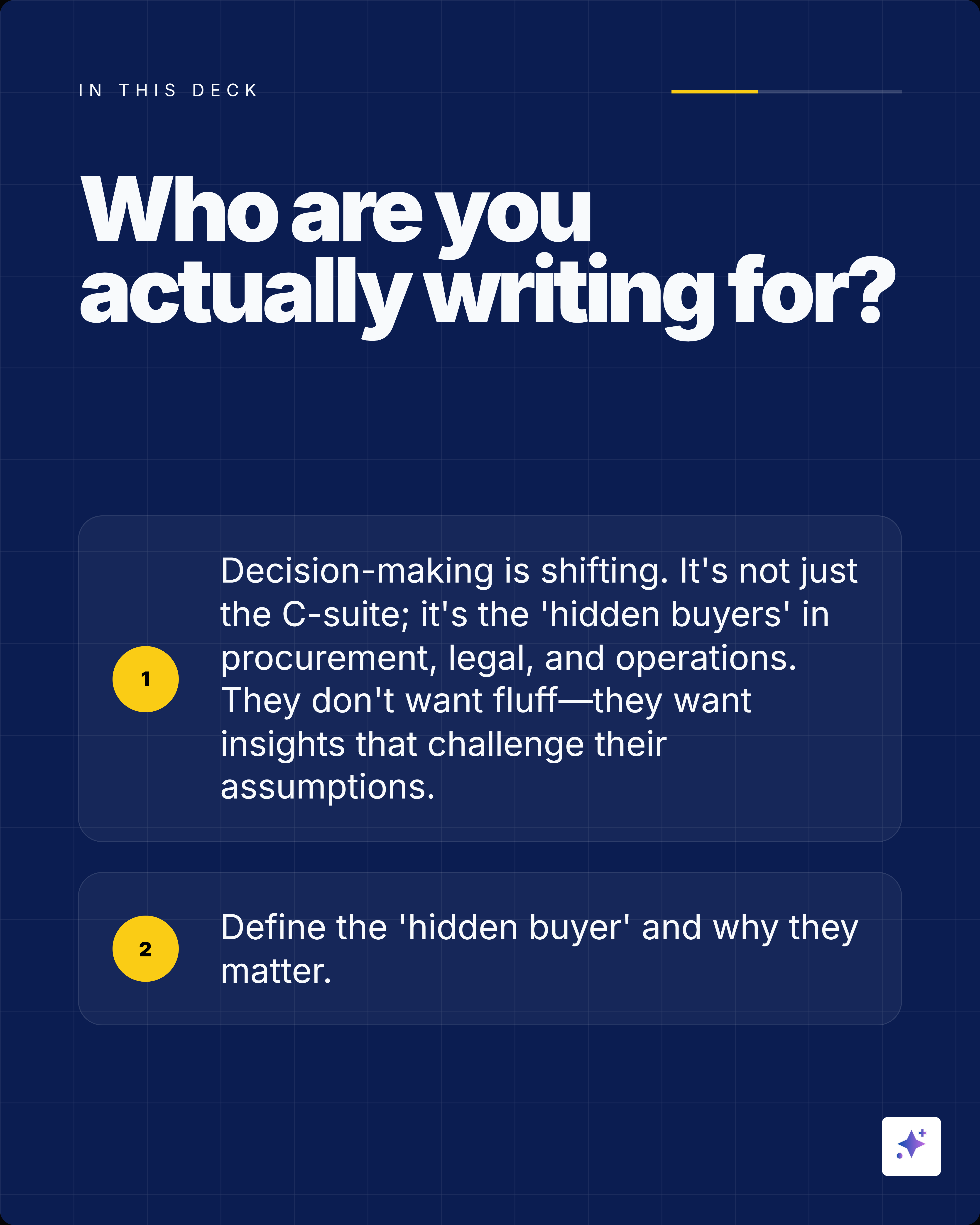
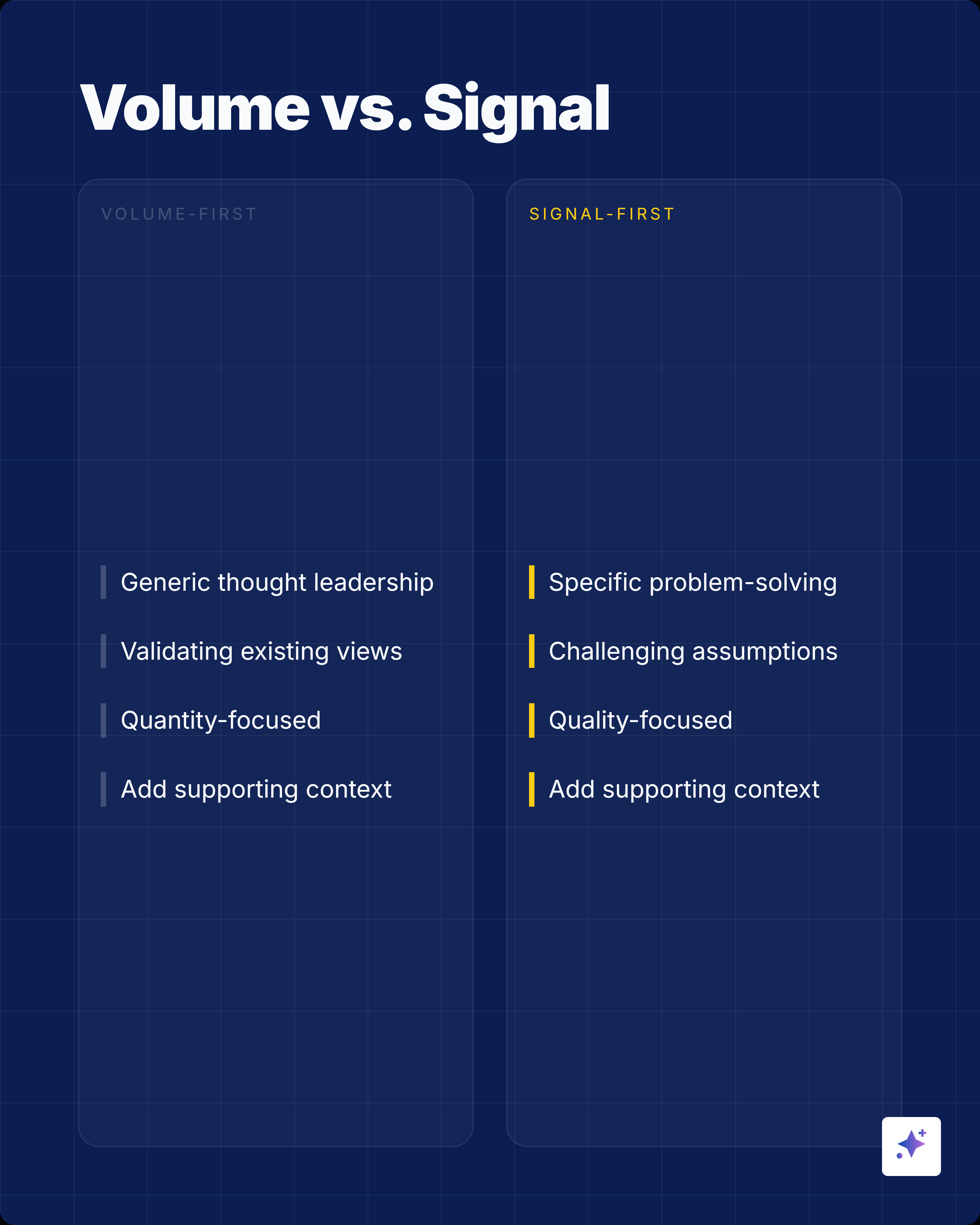
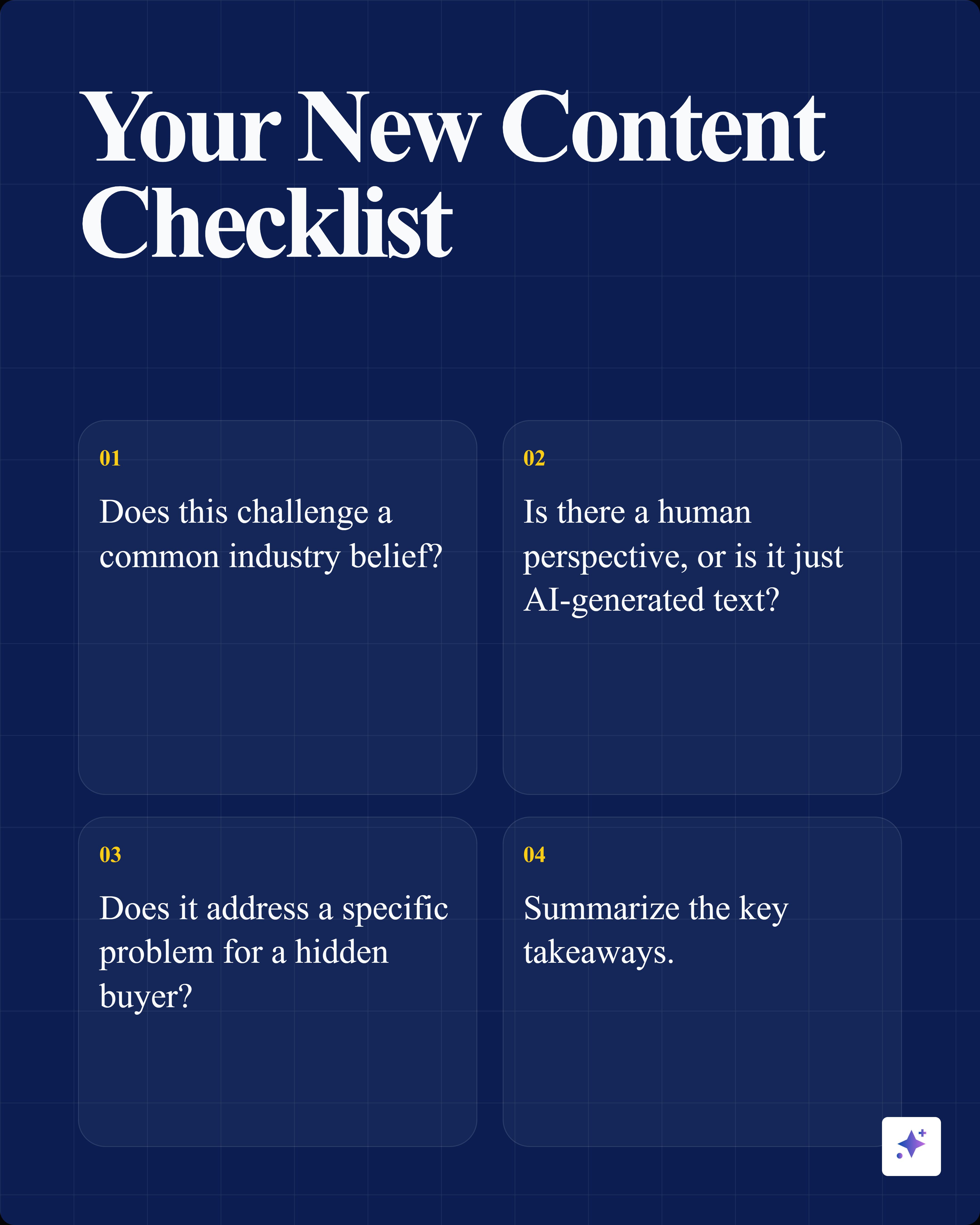
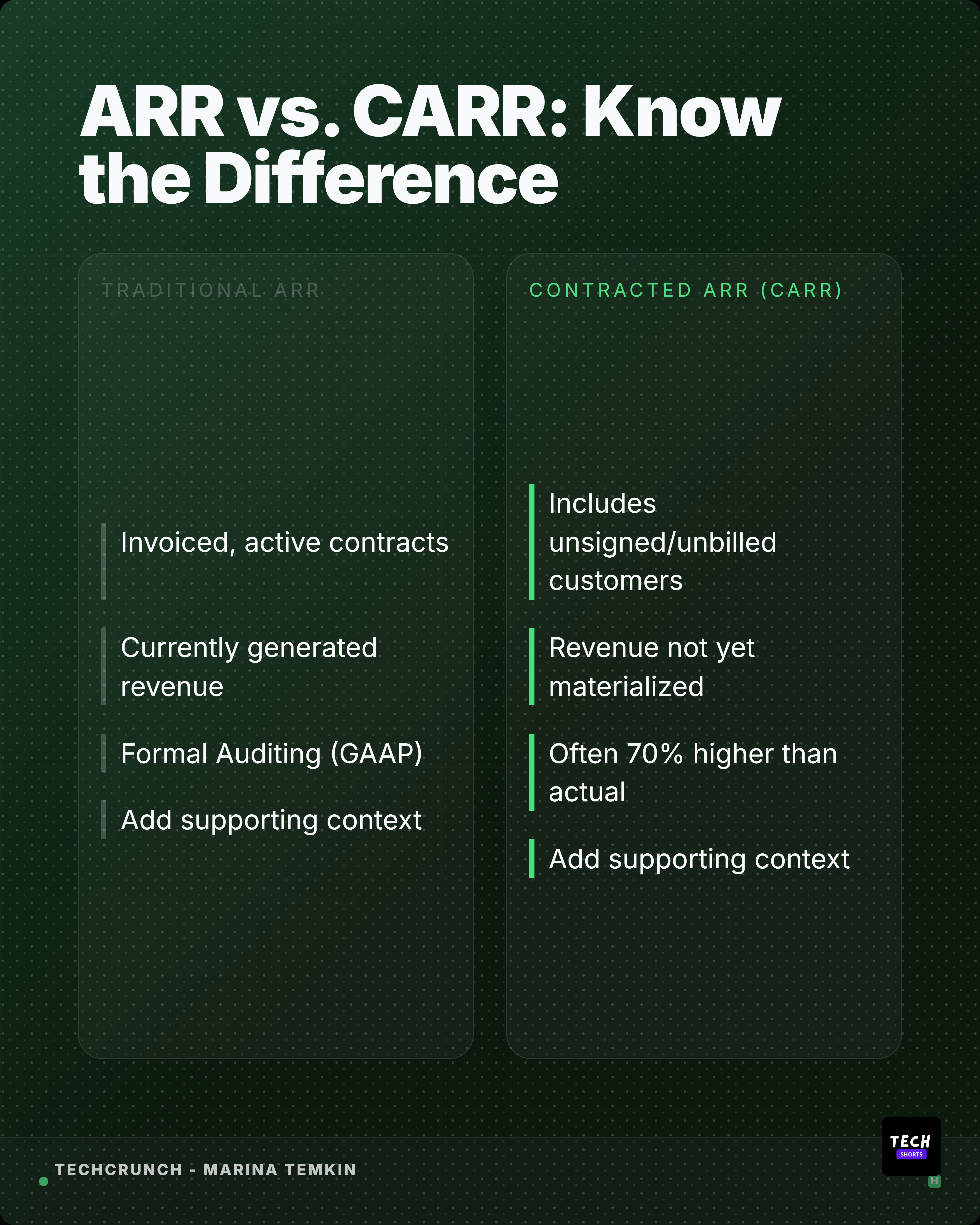
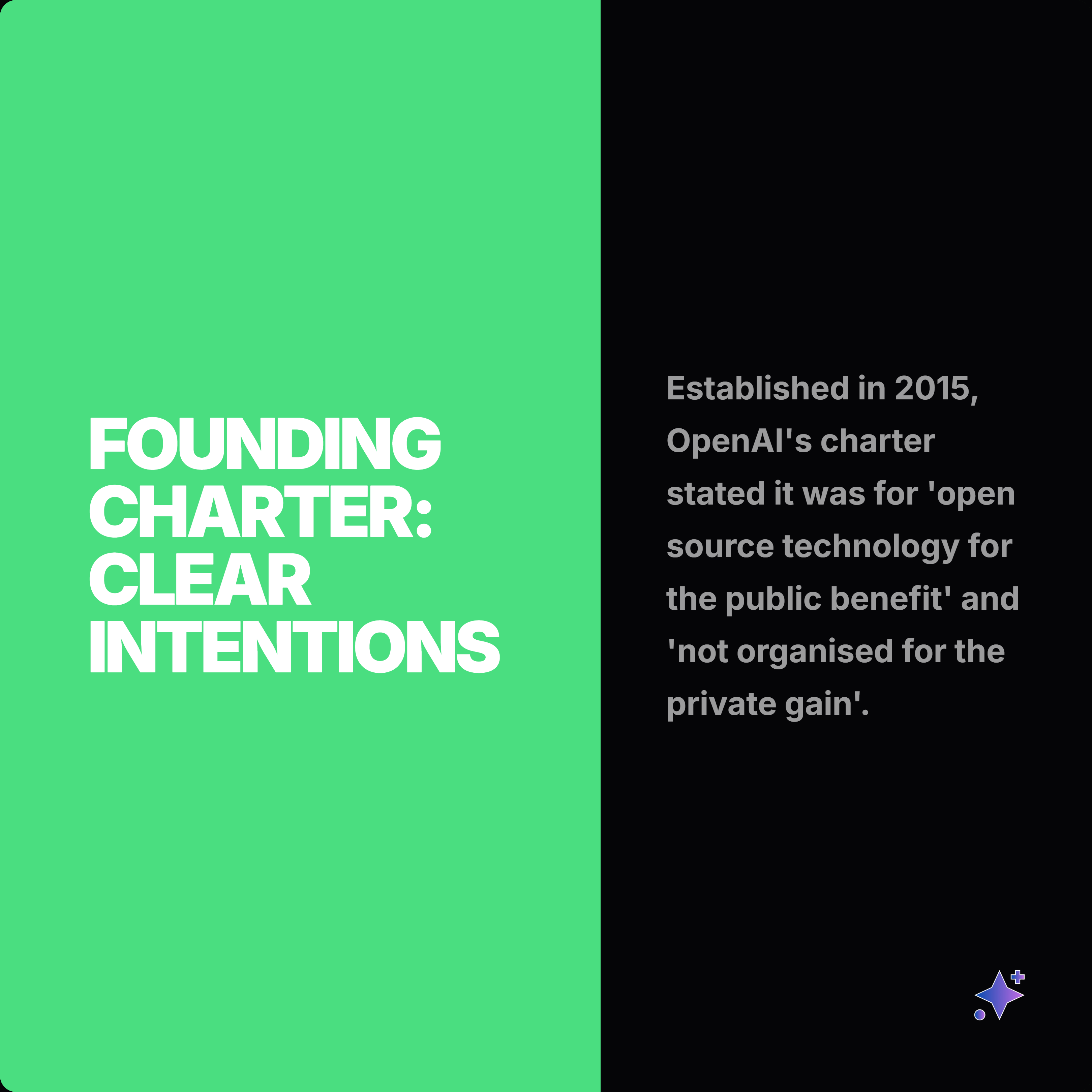
These complete rails show how one source can become a readable slide story, then split into smaller proof cards and captions.







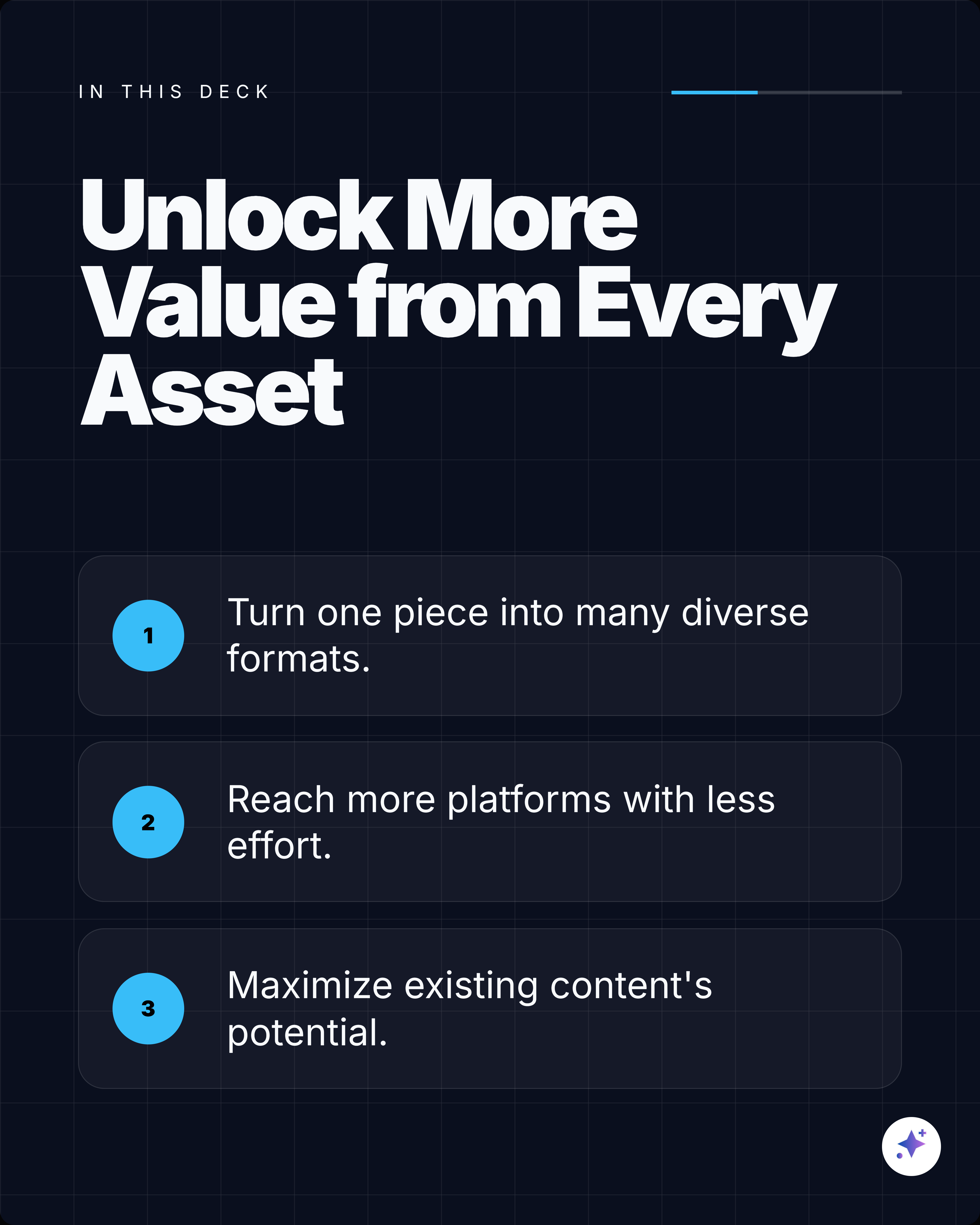
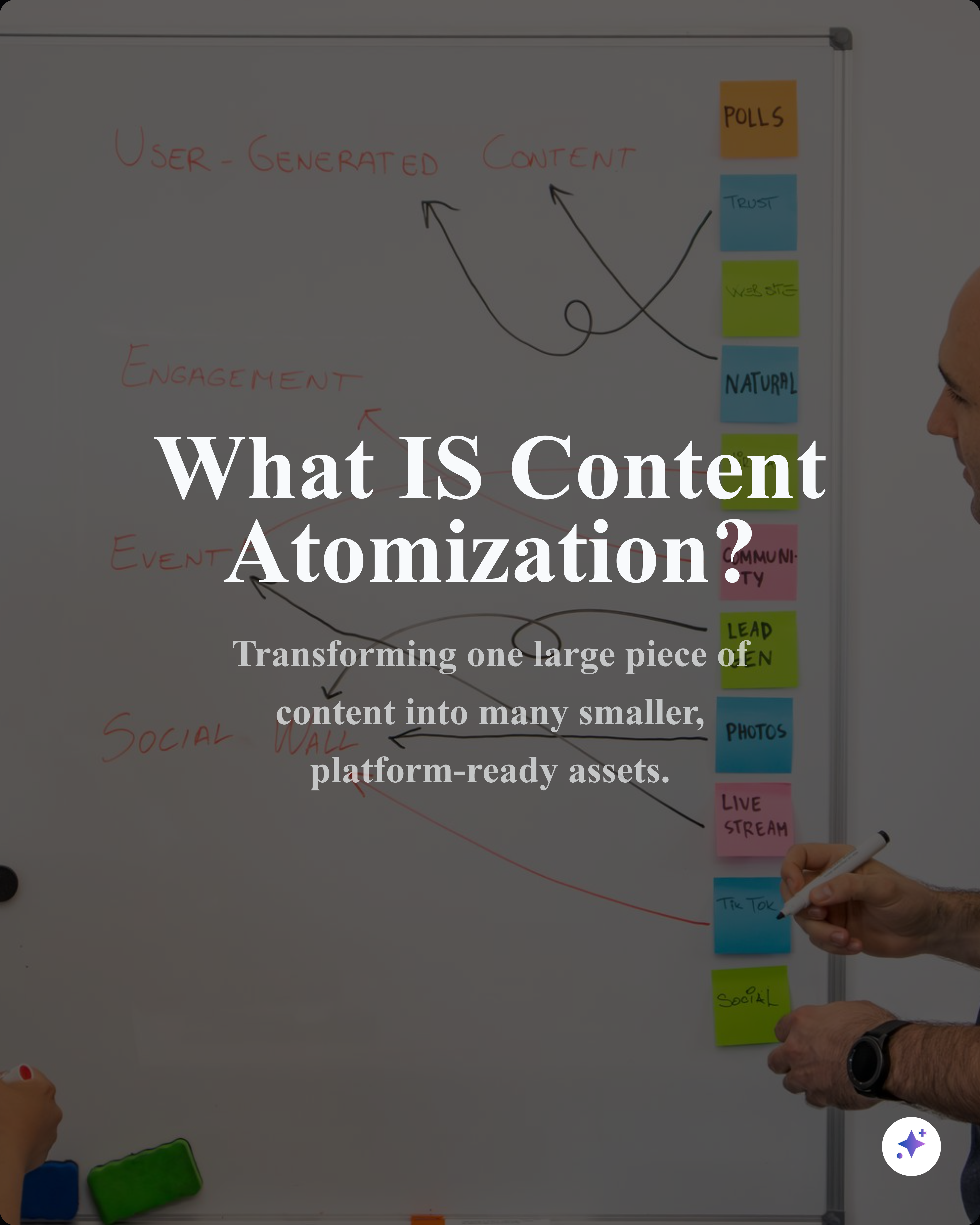
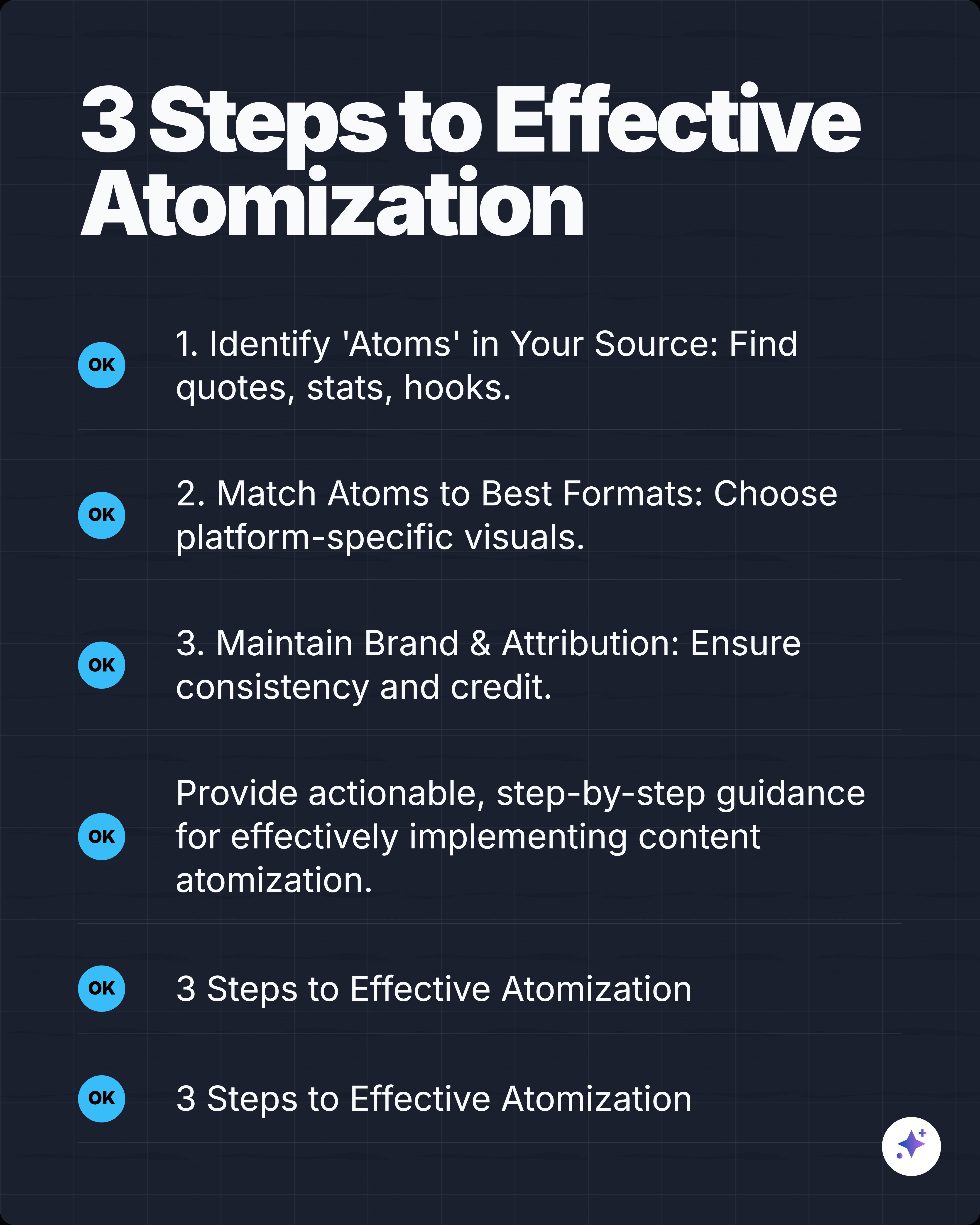
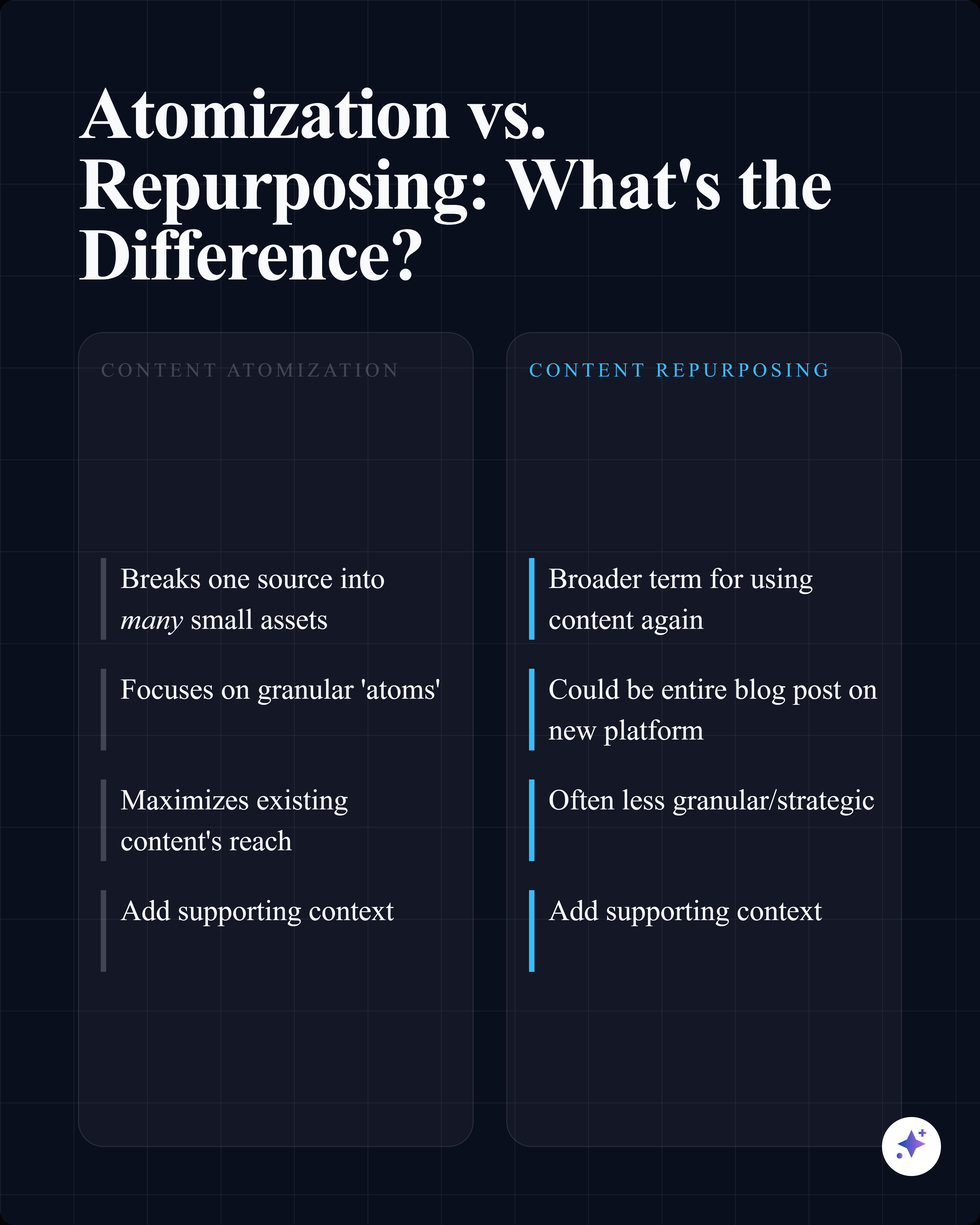






















Best for
- Turning a blog post, report, case study, memo, or presentation into a swipeable LinkedIn post.
- Explaining frameworks, before-after stories, product lessons, research findings, or step-by-step ideas.
- Making dense source material easier to scan on mobile without publishing the whole document.
Not best for
- Uploading an unedited deck with tiny text and corporate footers on every slide.
- Trying to summarize ten unrelated ideas in one carousel.
- Replacing attribution when the slides depend on a report, article, quote, or interview.
Manual workflow
- 1Choose one source-backed angle from the article, deck, report, interview, or notes.
- 2Draft a hook slide, three to seven body slides, and a closing slide with a clear takeaway.
- 3Design each slide for mobile reading with large type, short lines, and one idea per page.
- 4Export the sequence as a PDF and upload it to LinkedIn as a document post.
Highlightly workflow
- 1Upload a PDF/DOCX/PPTX, paste an article URL, add a YouTube link, or paste raw text.
- 2Review the extracted hooks, stats, quotes, key points, and source context.
- 3Generate a LinkedIn-ready carousel with custom instructions for tone, slide count, and angle.
- 4Tune the slides, apply brand styling, and export the sequence for LinkedIn.
Step by step
Pick the one promise
A good slideshow post needs one job: teach a lesson, explain a change, summarize a report, or make a case.
Build a slide arc
Use a hook, context, proof, key points, and a closing takeaway instead of dumping a whole deck into LinkedIn.
Design for the feed
Keep each slide readable on a phone. Use large text, clear hierarchy, and fewer words than a normal presentation slide.
Export and upload
Export the sequence as a PDF or supported document and upload it to LinkedIn as a document post.
Research notes
What this answer is grounded in
Common questions
Is a LinkedIn slideshow the same as a carousel?
Usually, yes. Many people say carousel, slideshow, swipe post, PDF post, document post, or PPT-style post when they mean a swipeable LinkedIn document post.
Can I upload a PowerPoint to LinkedIn?
LinkedIn document posts are commonly created by exporting slides to PDF first, then uploading the document. This keeps formatting more predictable.
How many slides should a LinkedIn slideshow have?
Most source-backed posts work best with a tight sequence: one hook, a few proof or teaching slides, and one closing slide. The exact count depends on the source and the story.