How do I make screenshots look professional for social media?
To make screenshots look professional for social media, crop the image to the useful area, place it in a clean frame or mockup, add enough padding, use a readable background, and annotate only the part that matters. The goal is to turn a raw screenshot into a clear proof asset, not decorate it until the point gets lost.
The useful workflow is extraction first, packaging second: find the strongest source-backed material, decide what it proves, then turn it into the format people can actually read in-feed.
The output is the point: source material becomes publishable proof.
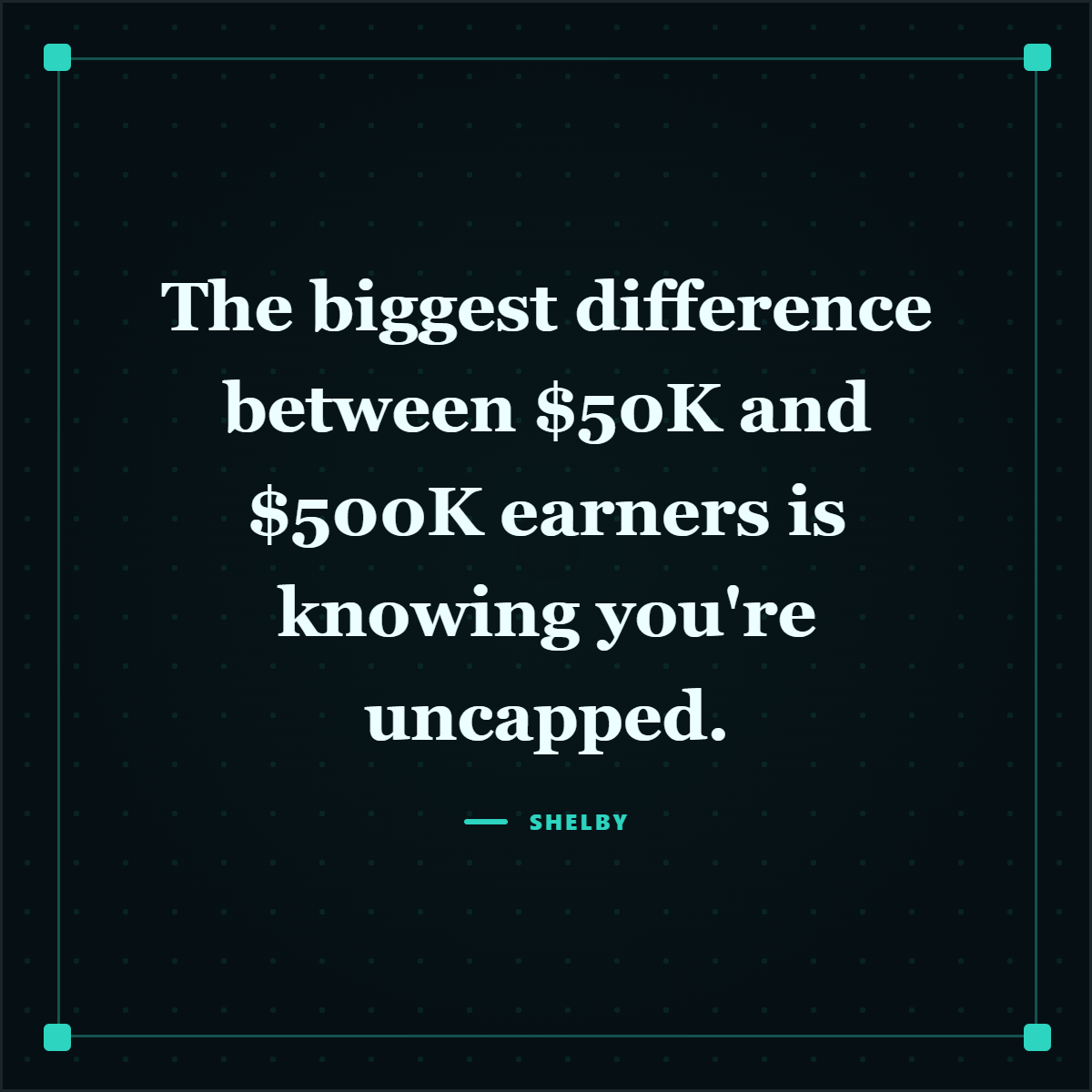
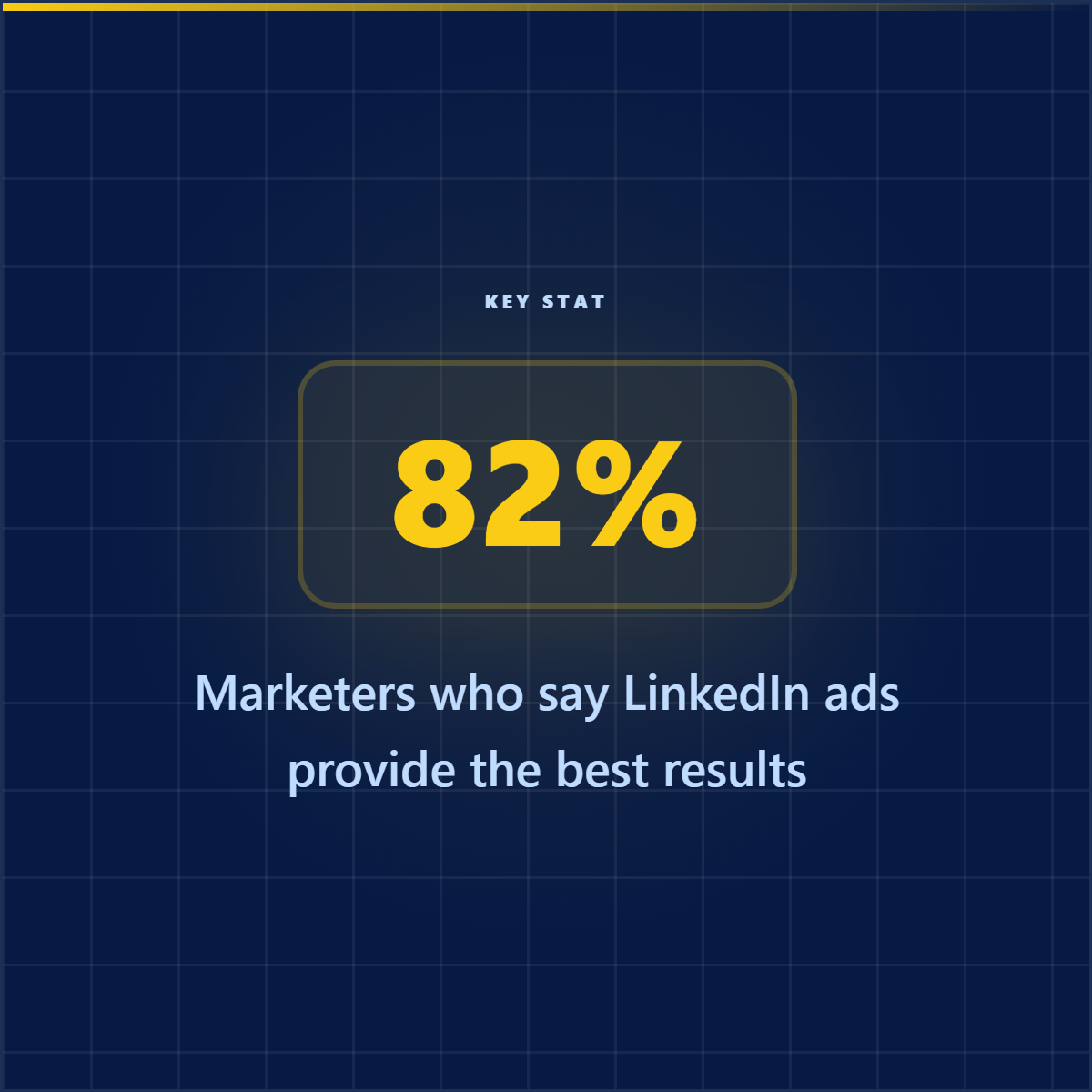
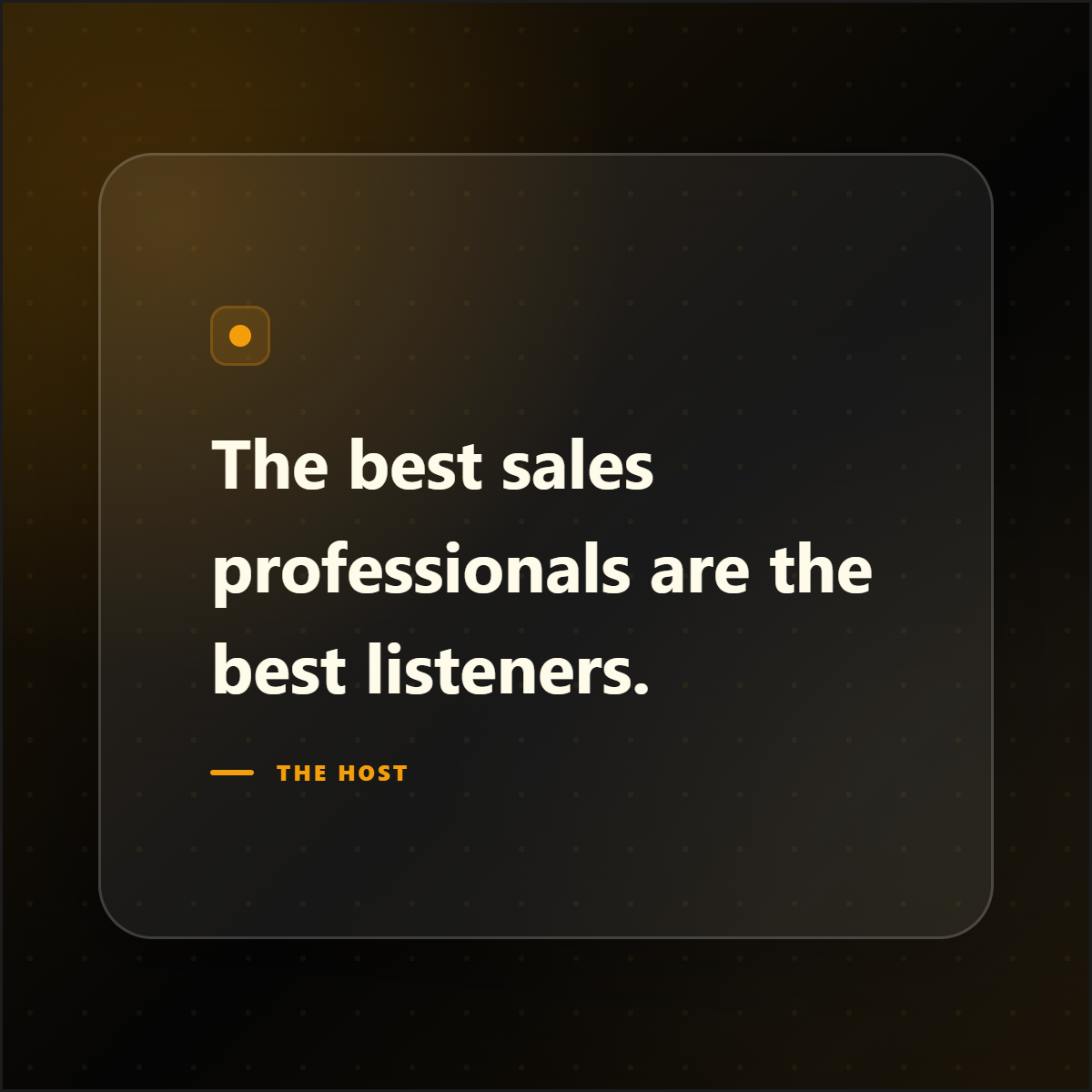
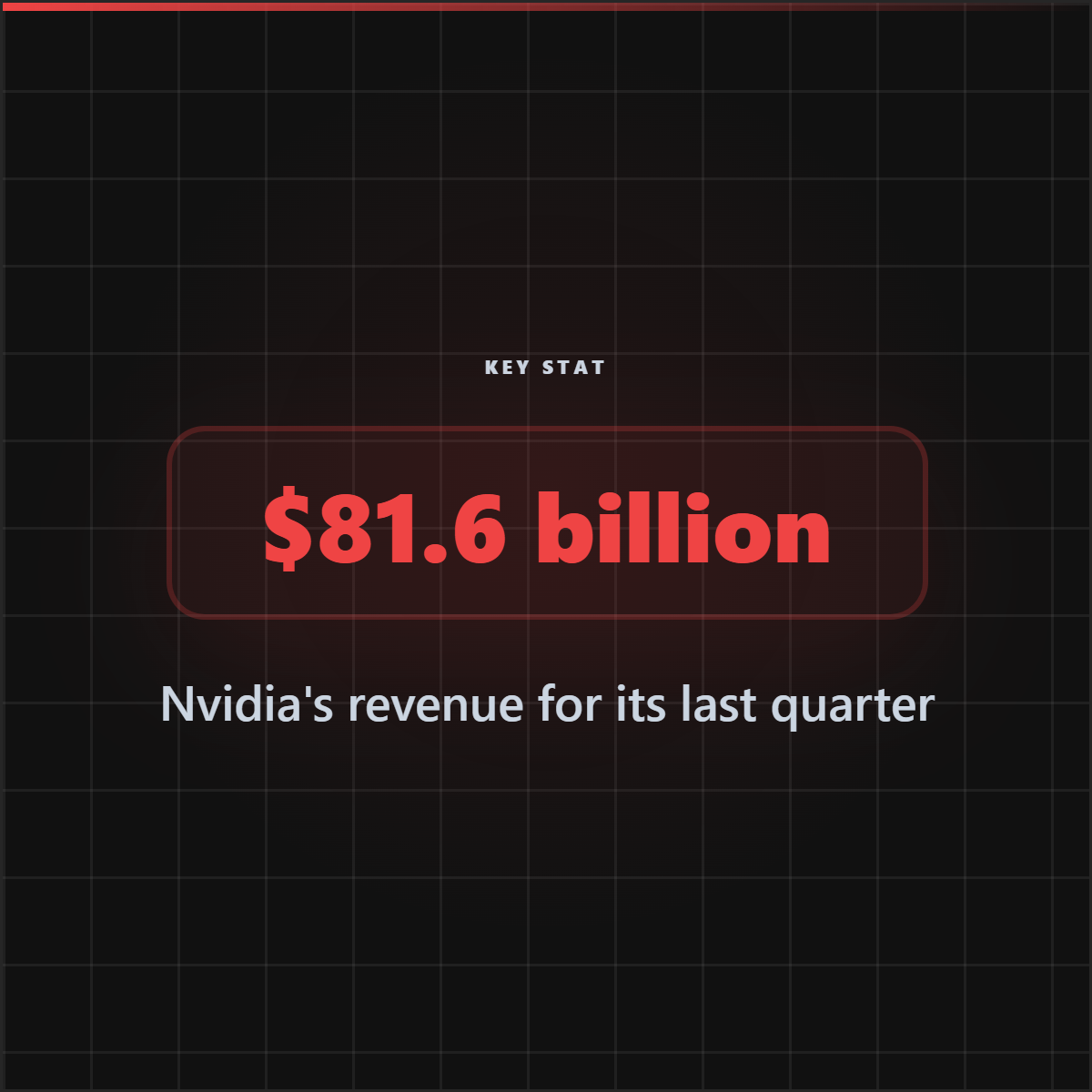
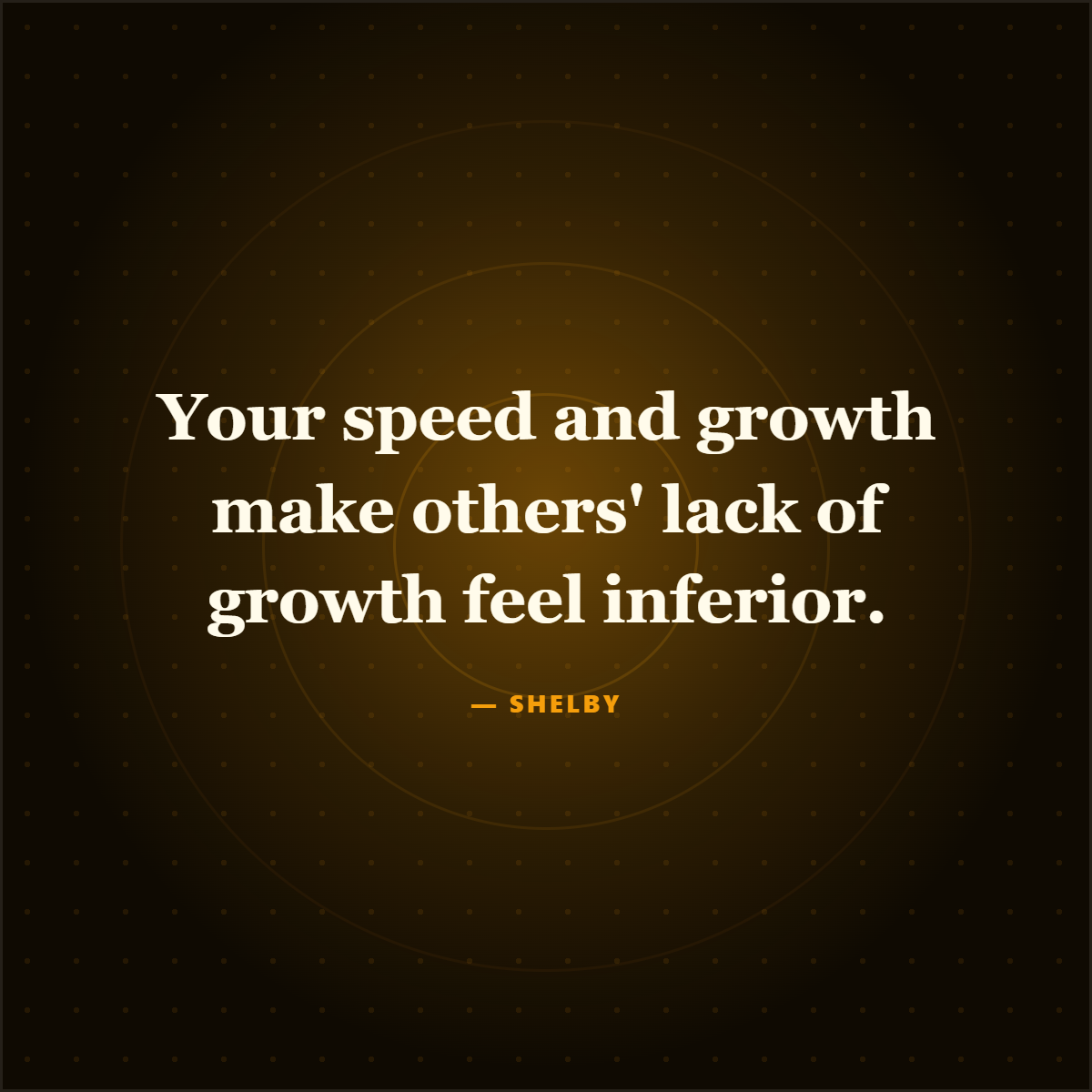
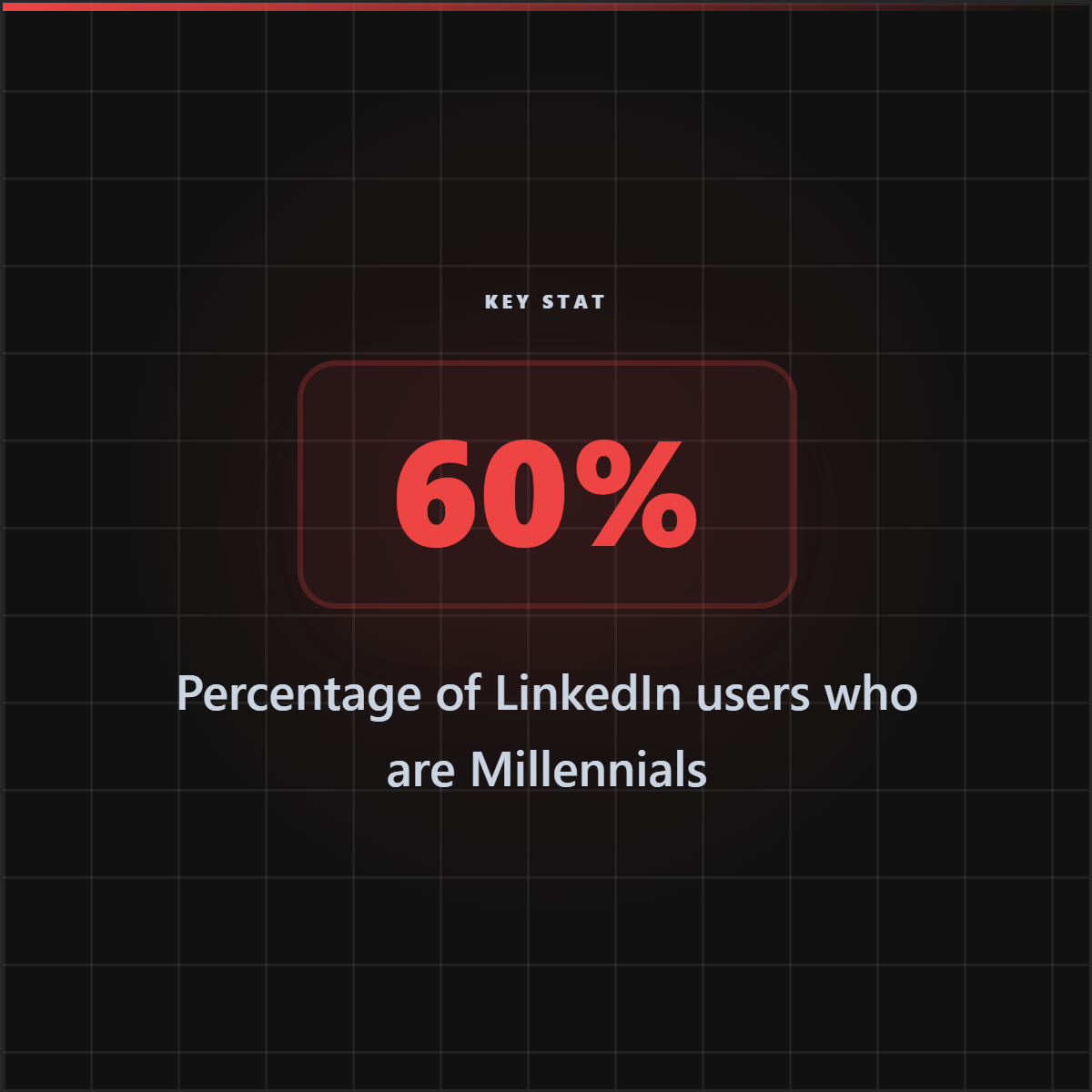
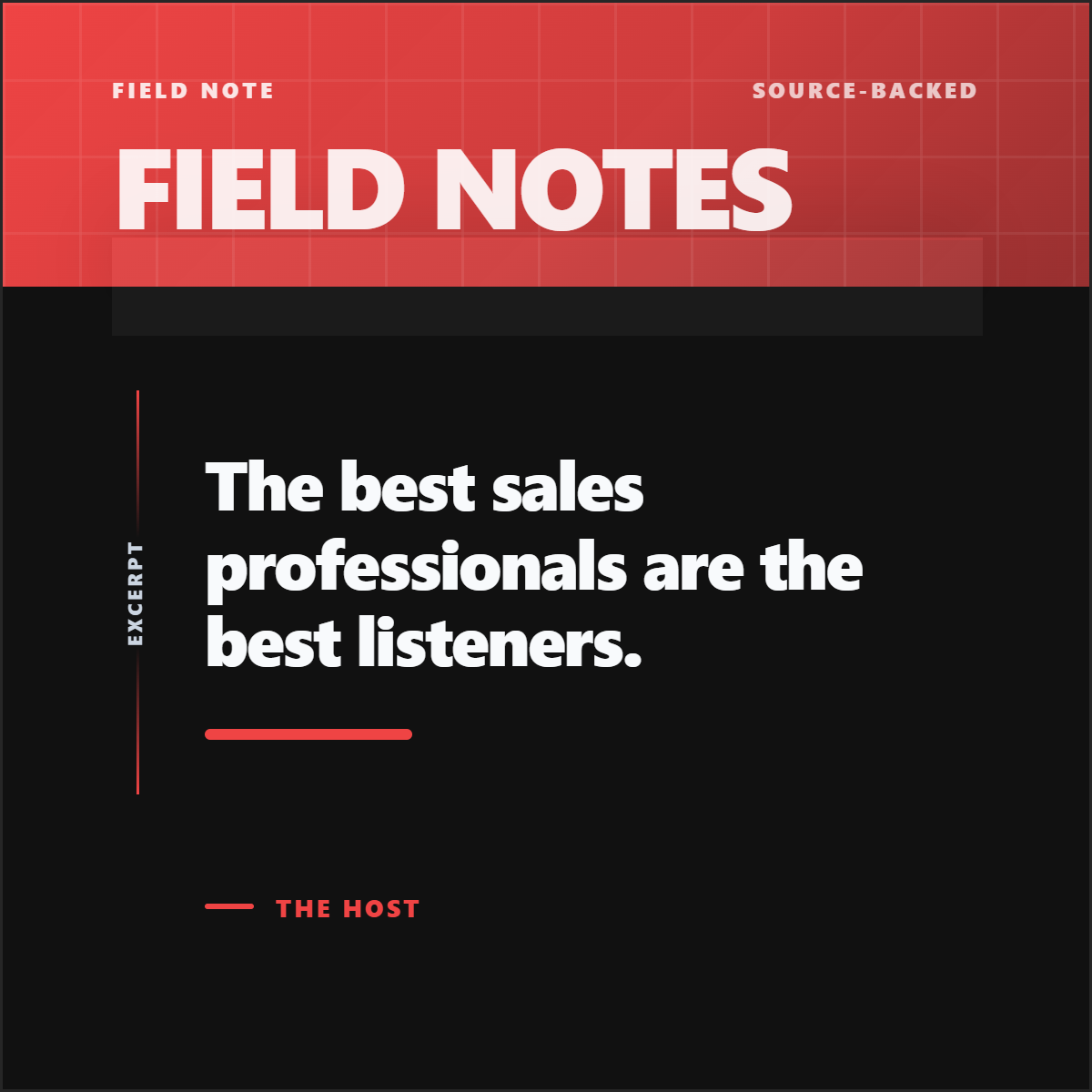
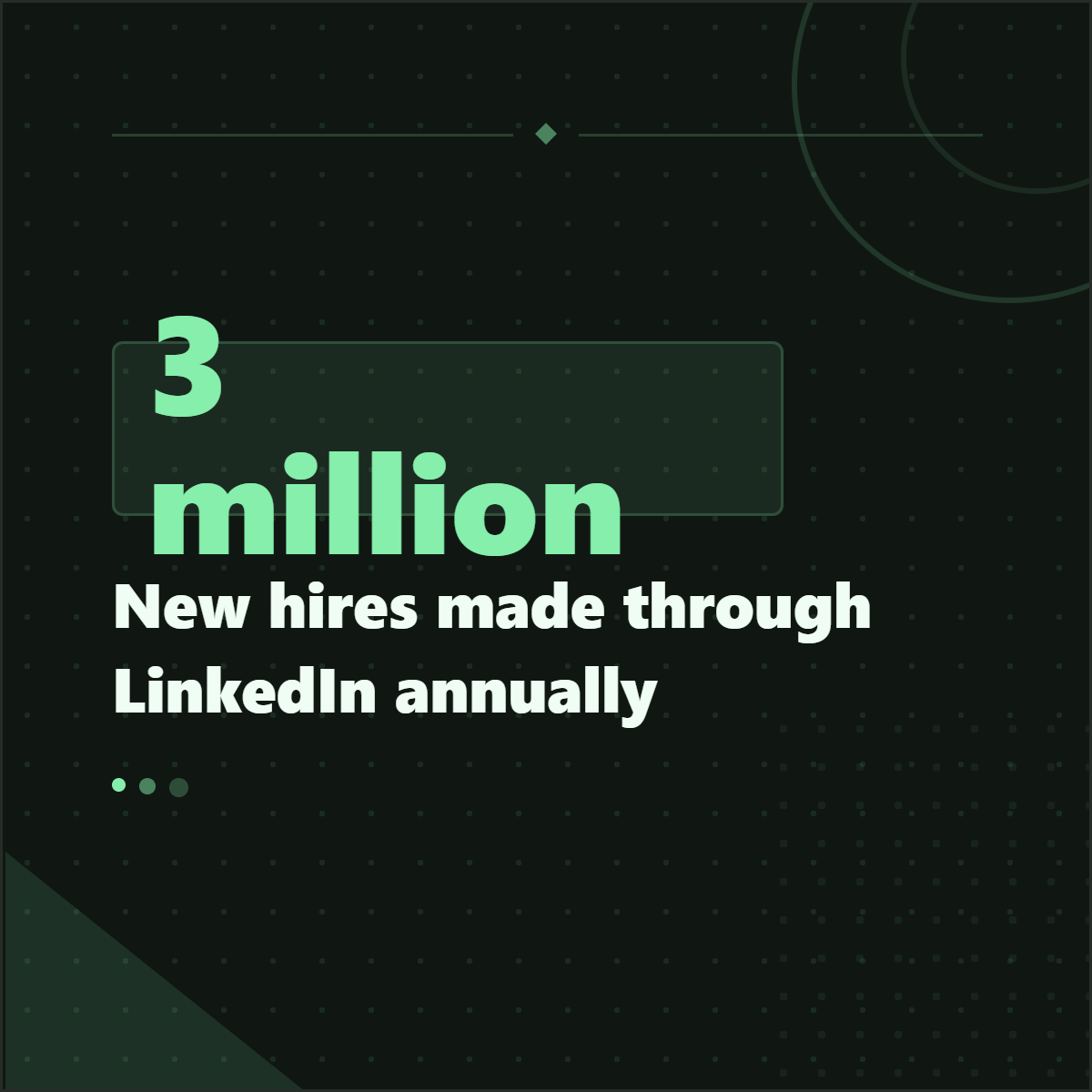
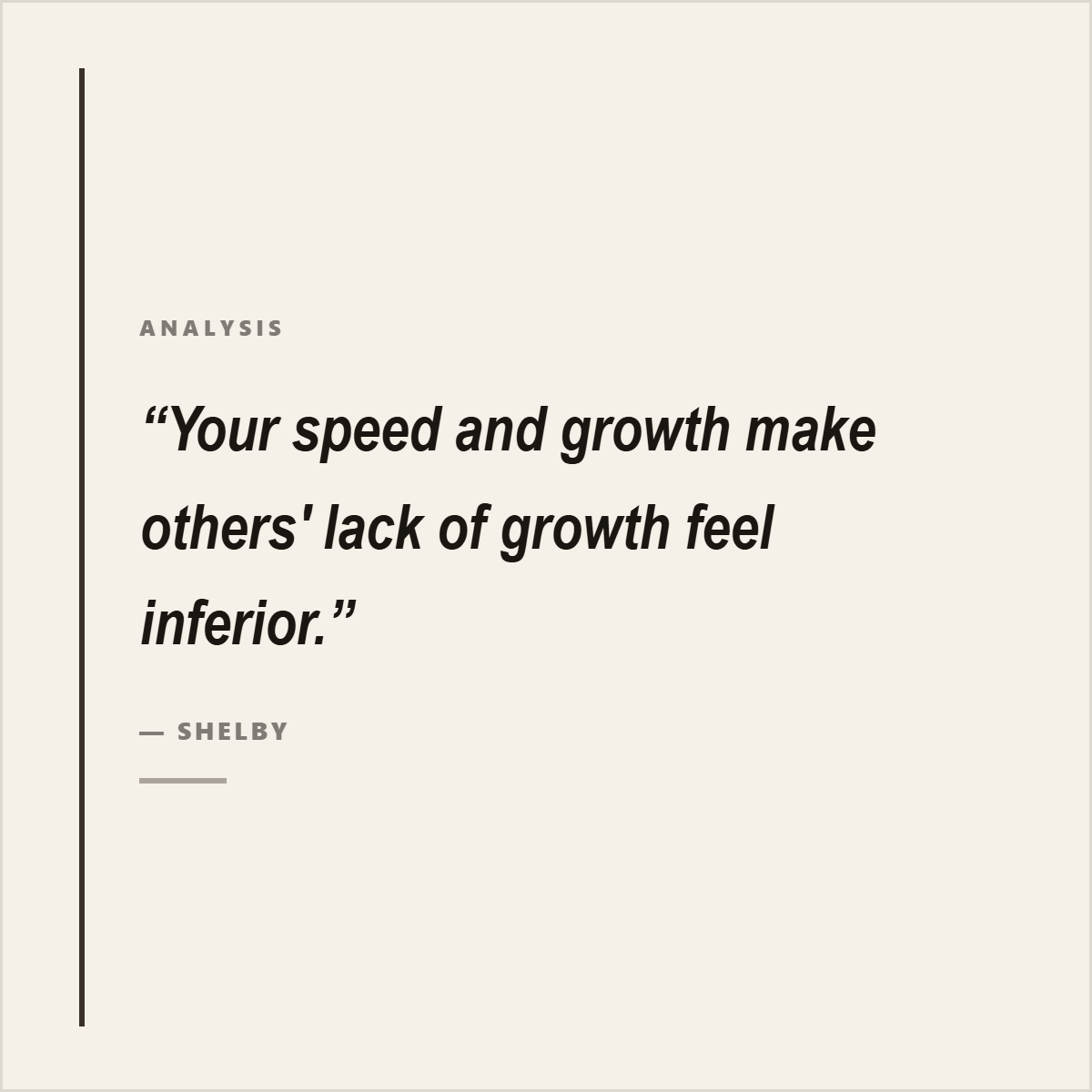
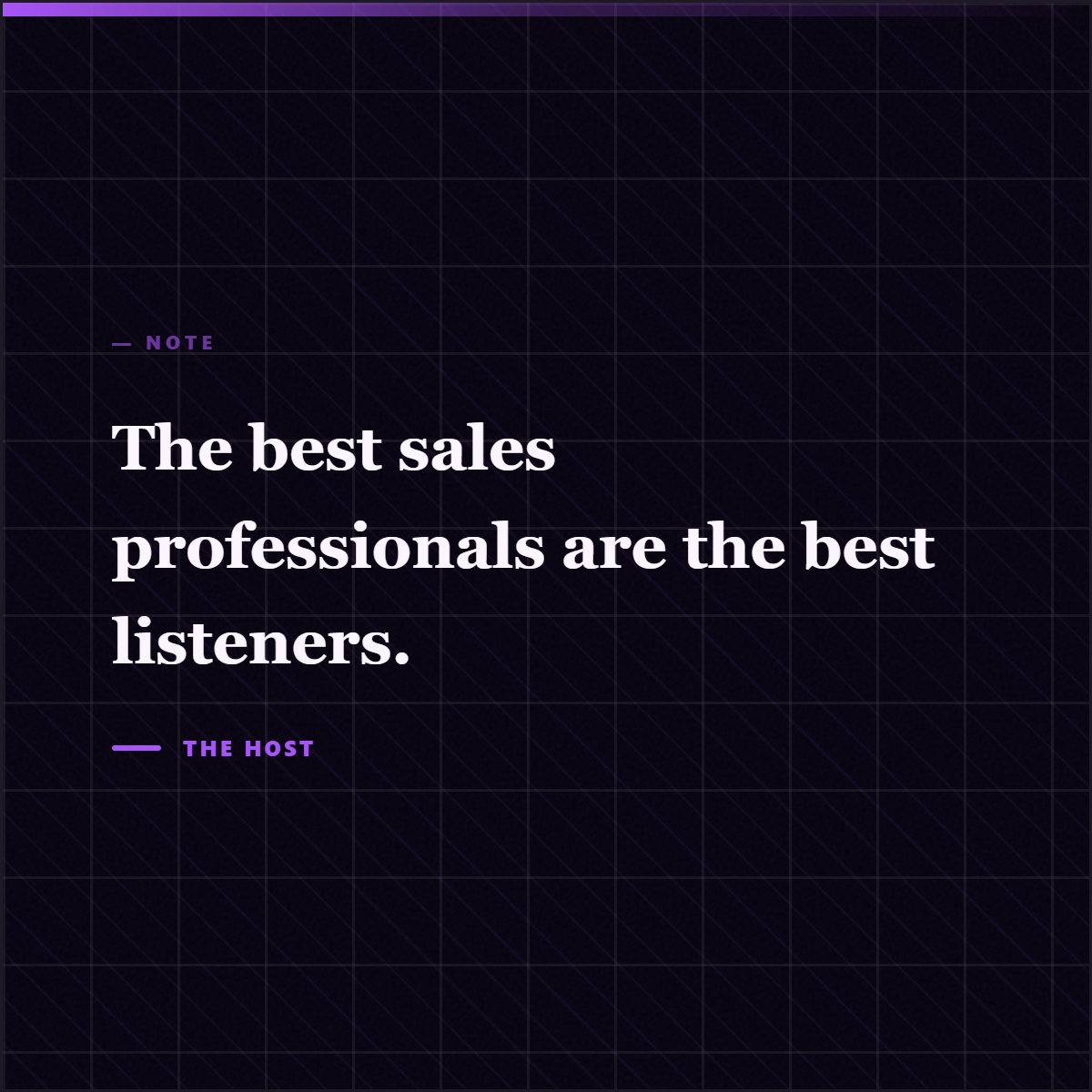
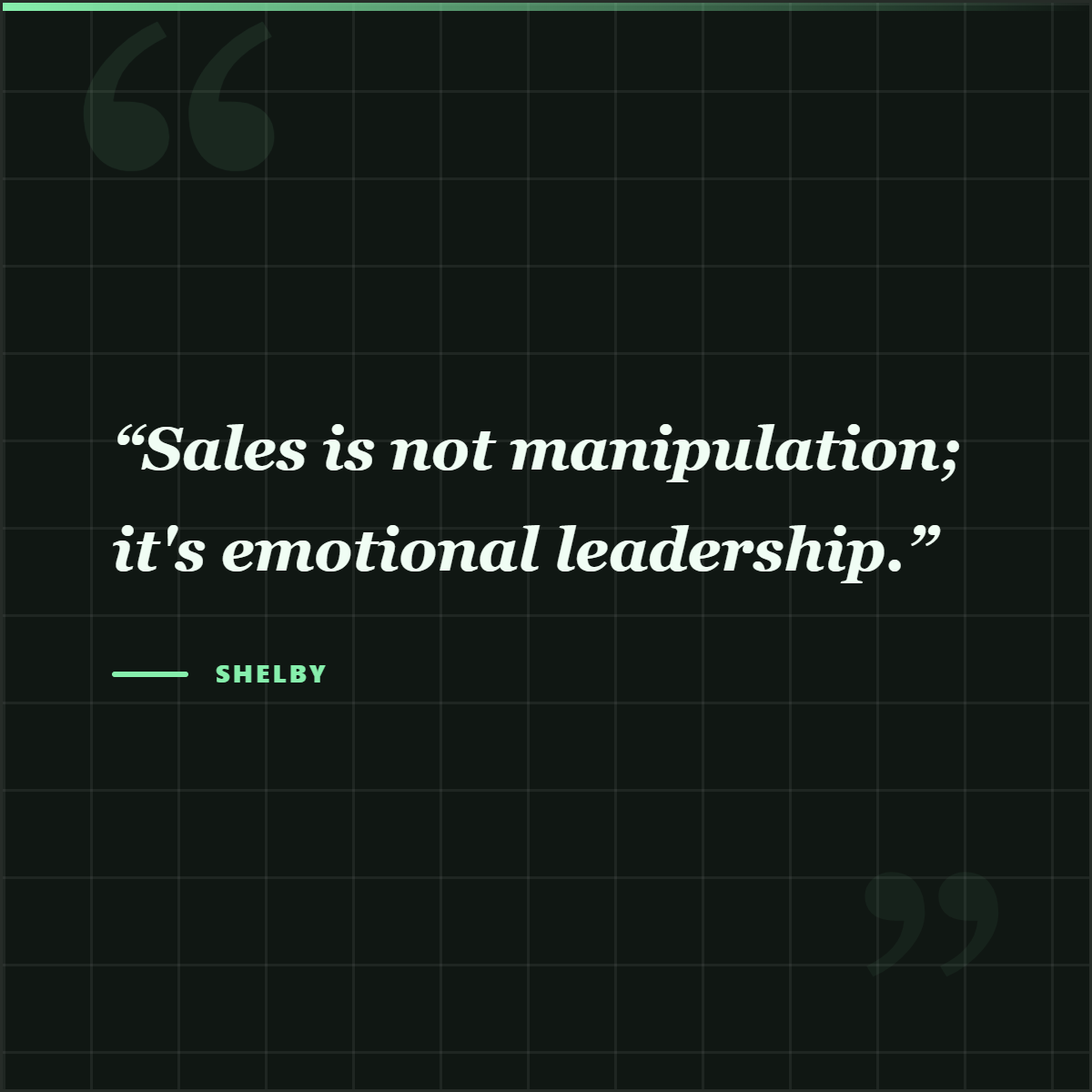
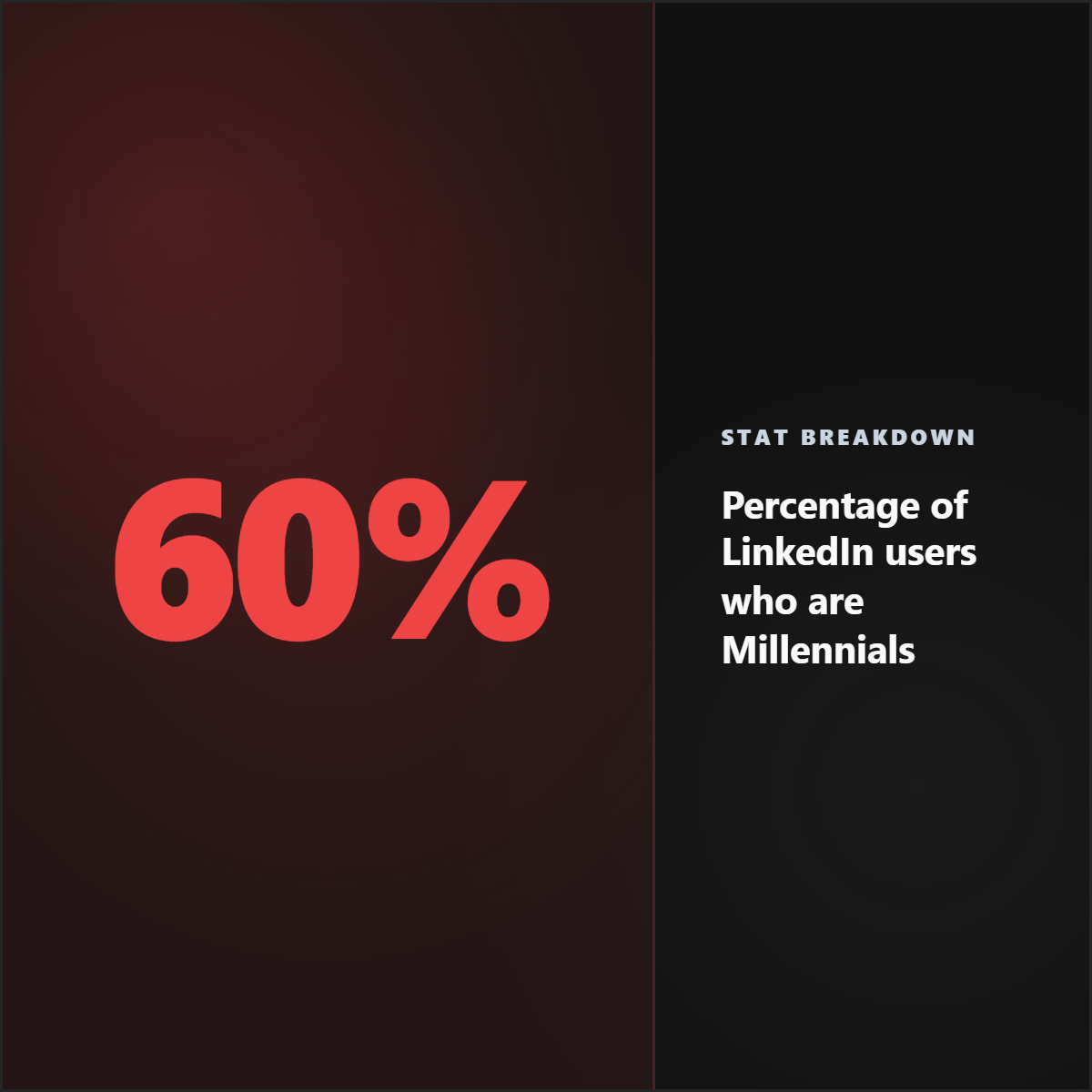
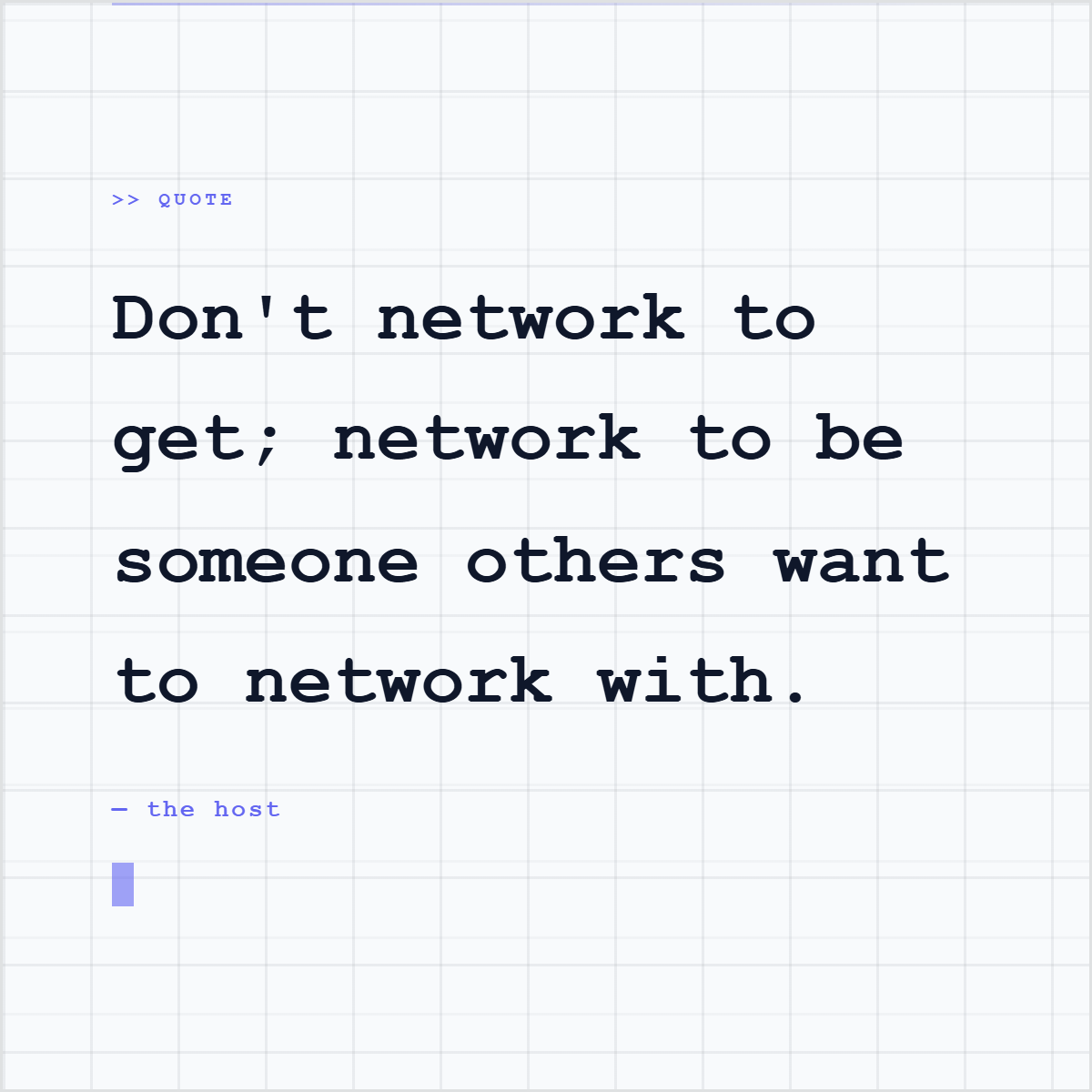
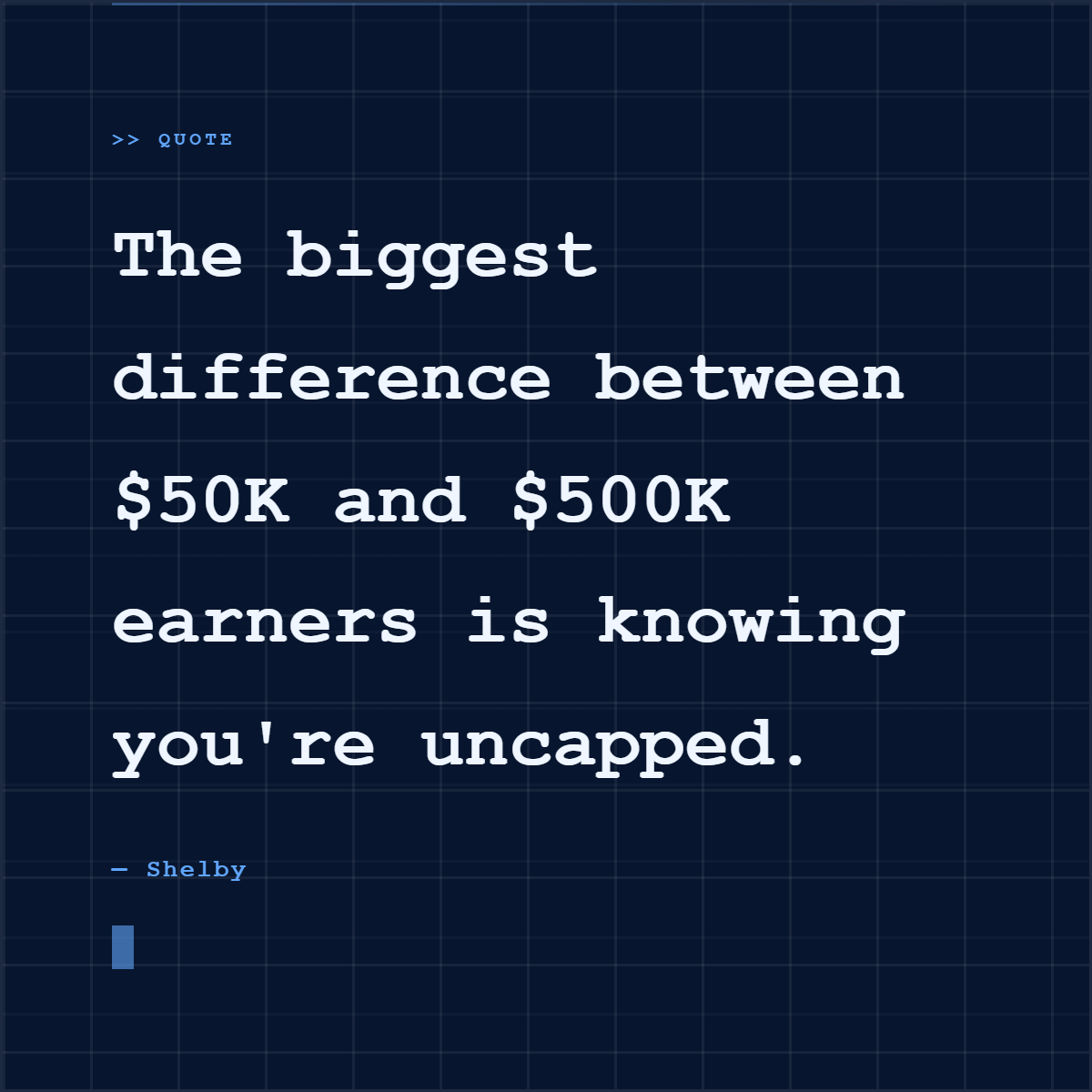
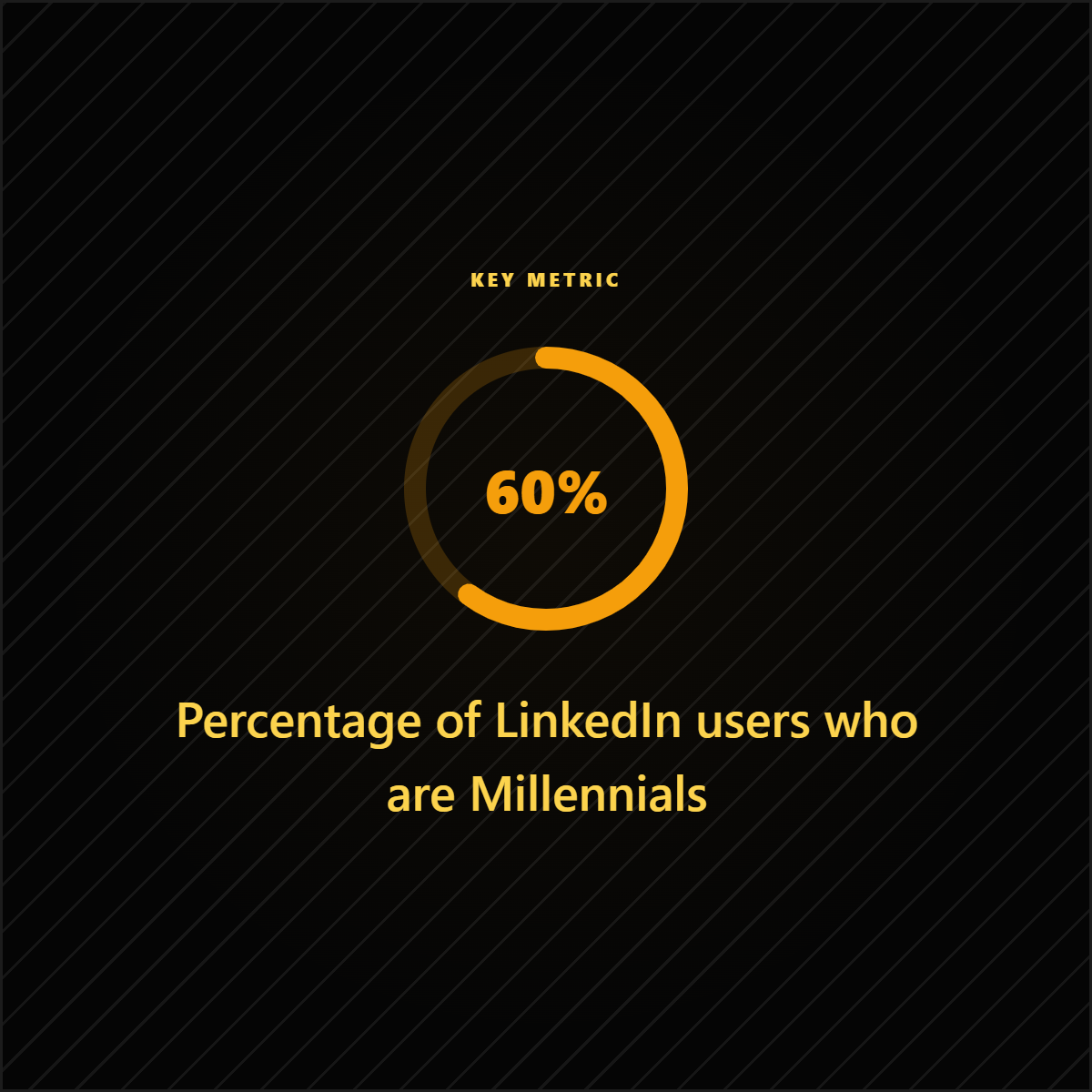
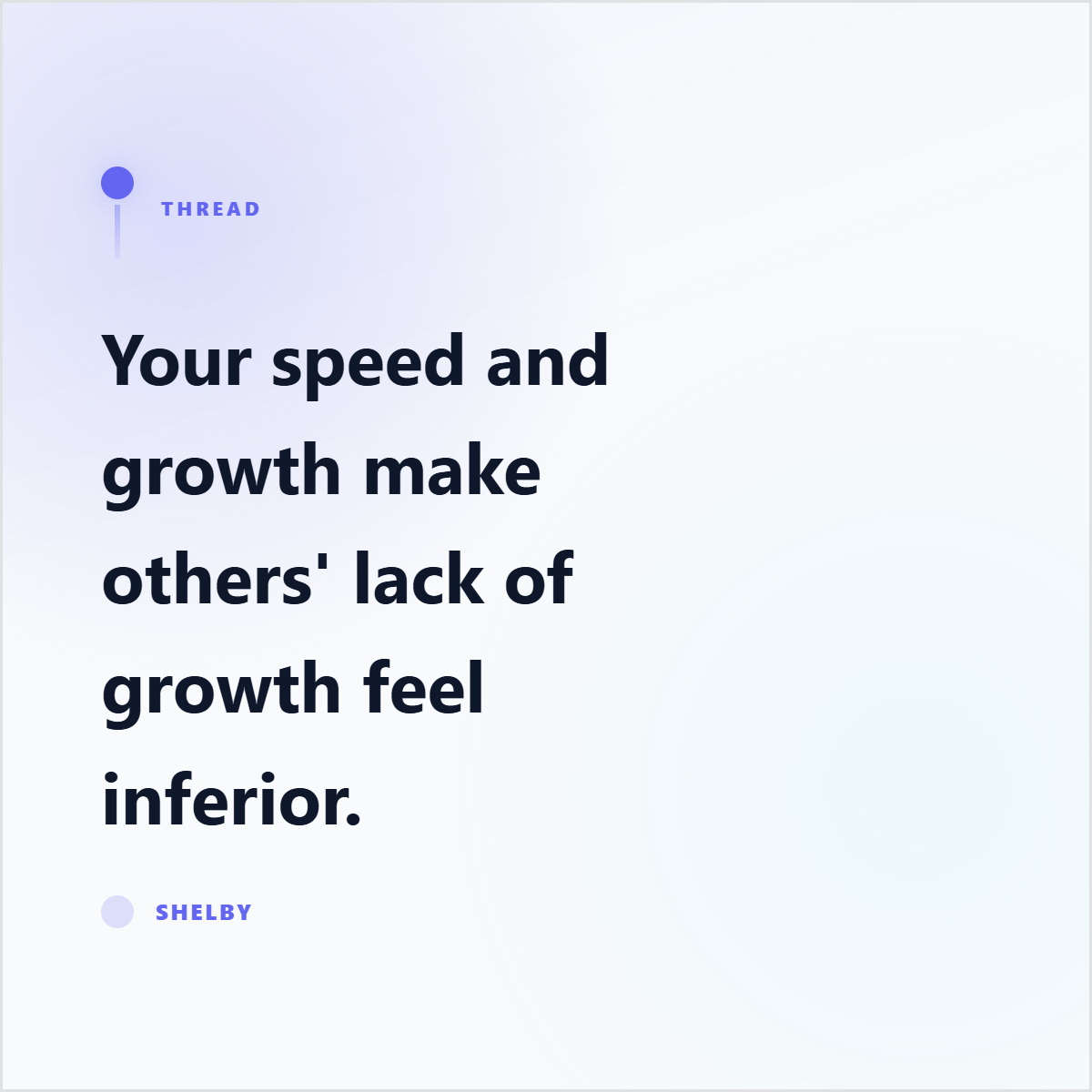
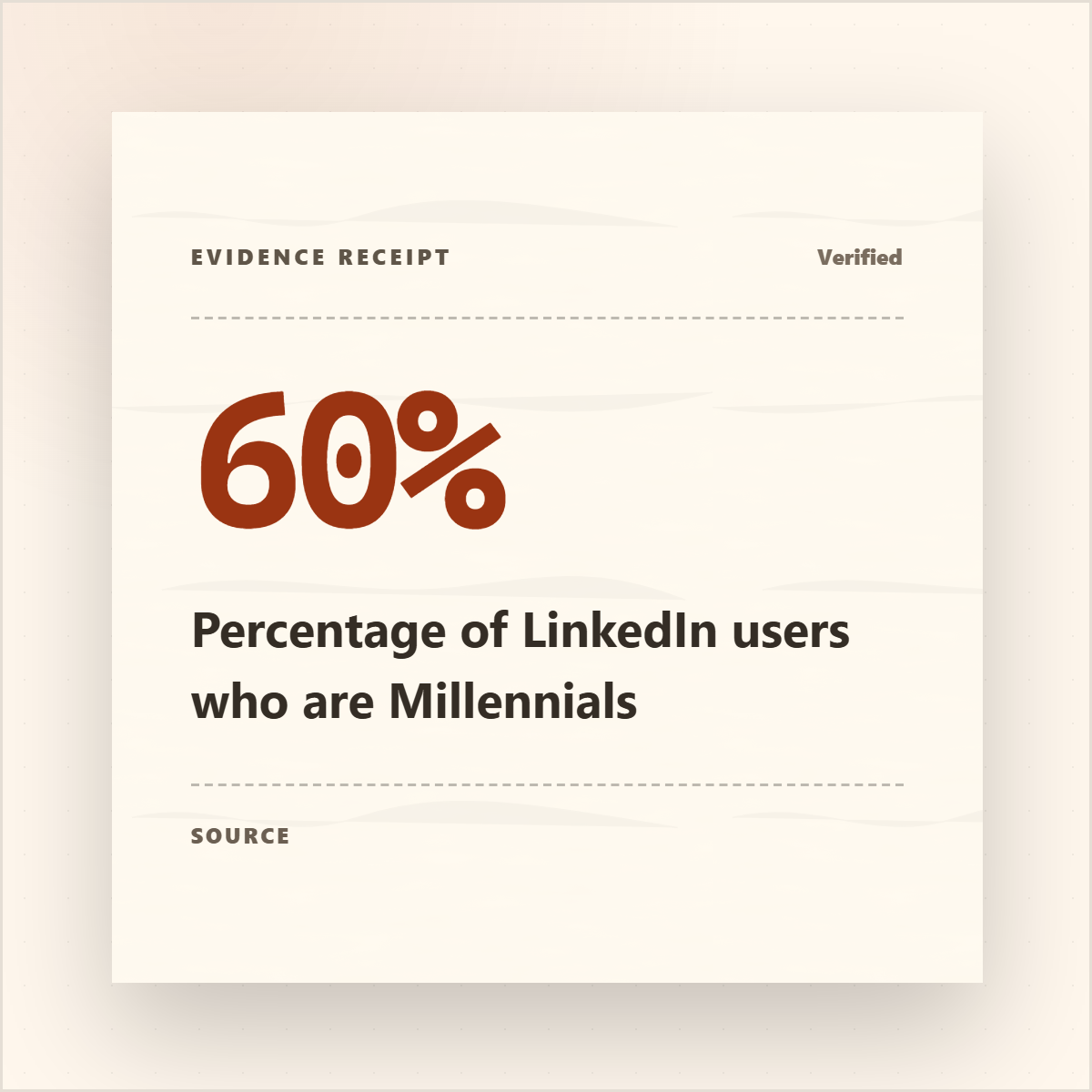
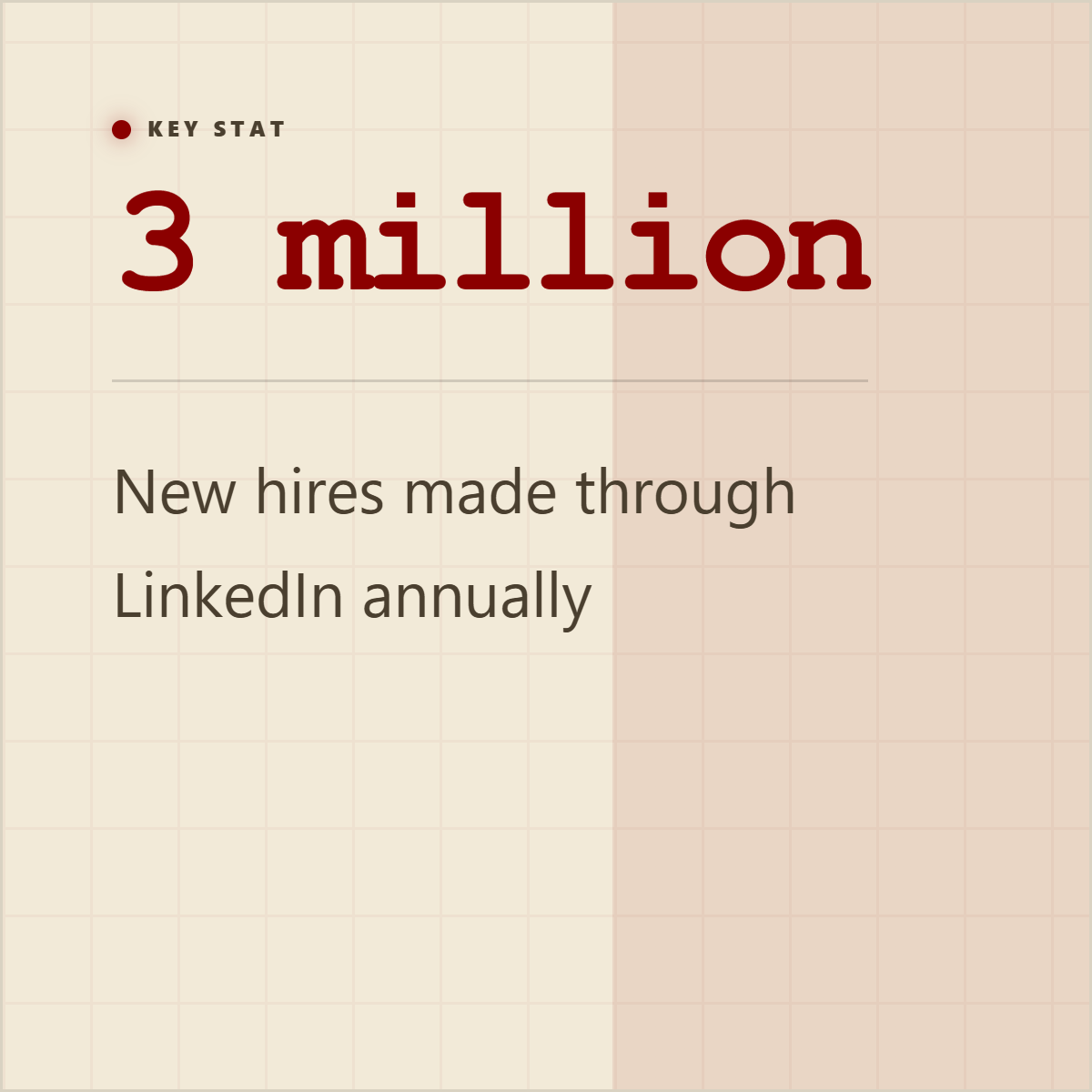
Quote cards, stat cards, and proof graphics give the extracted material somewhere useful to go.
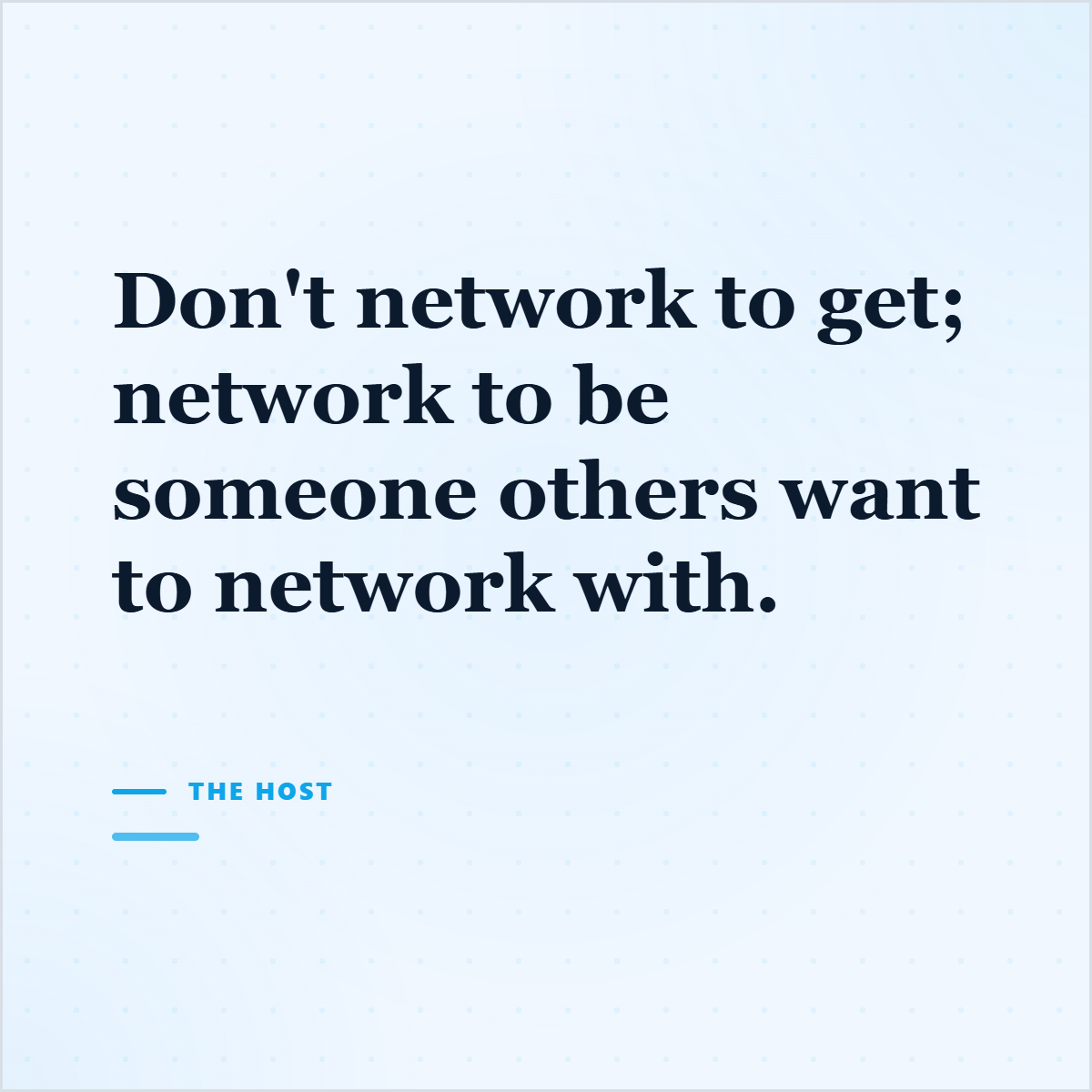
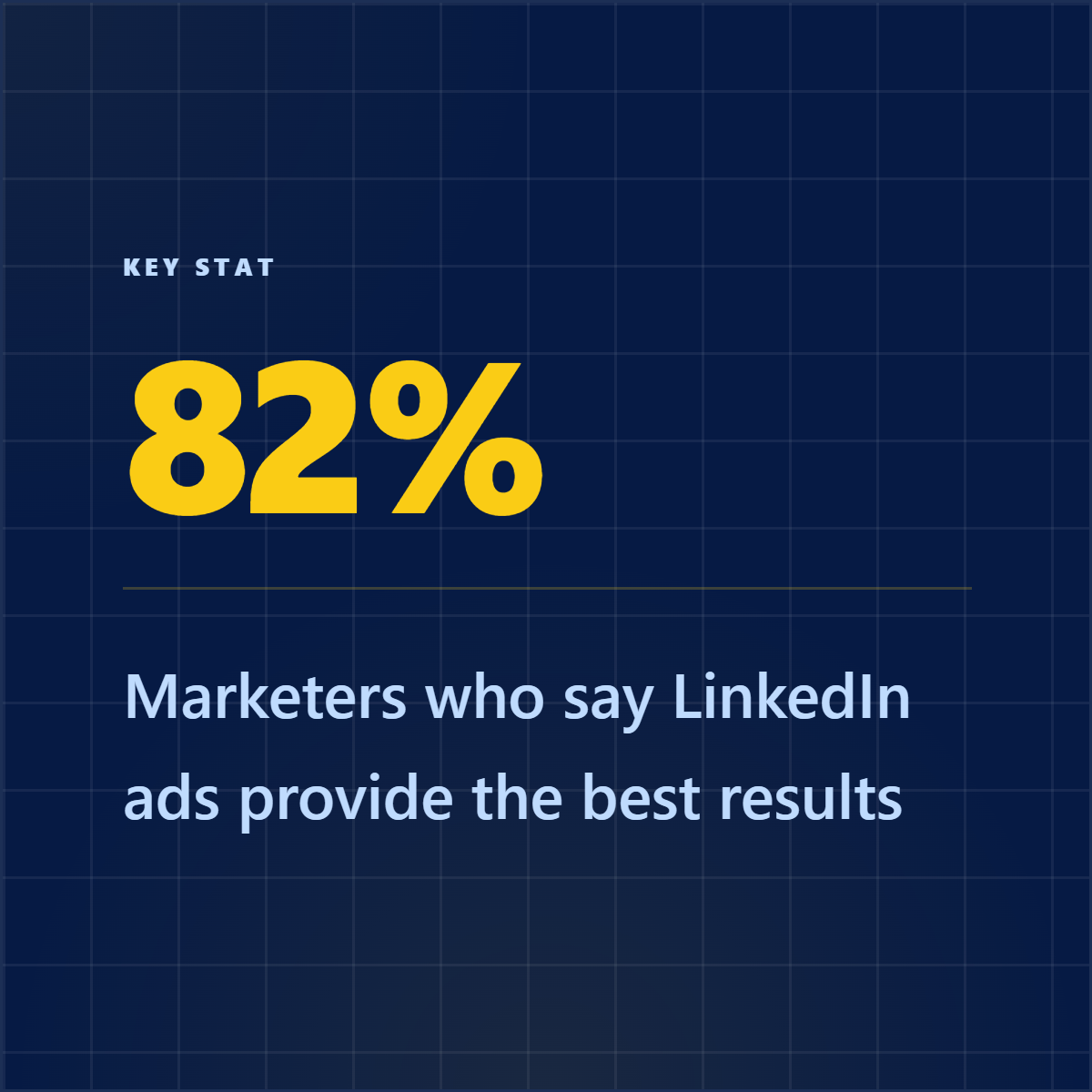
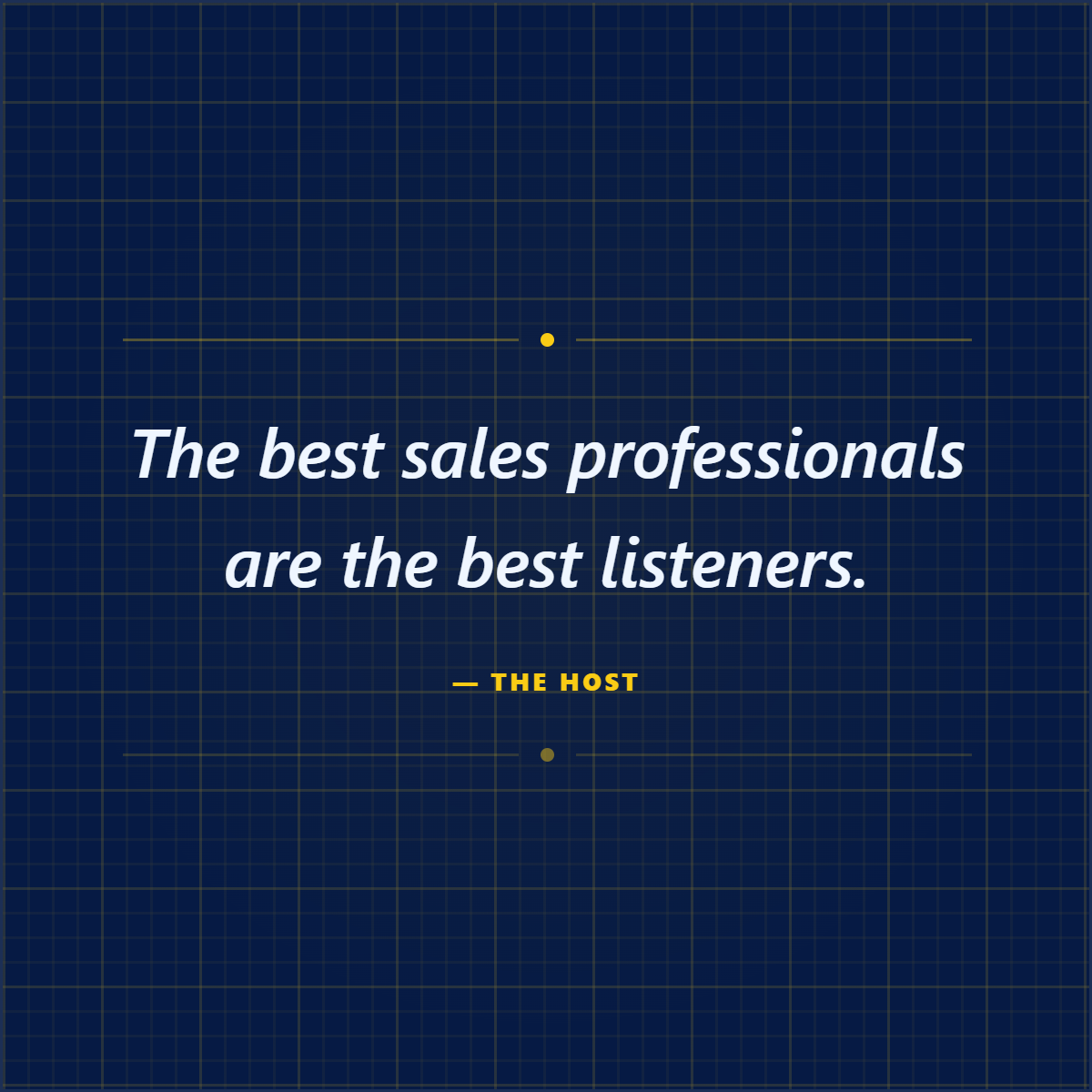
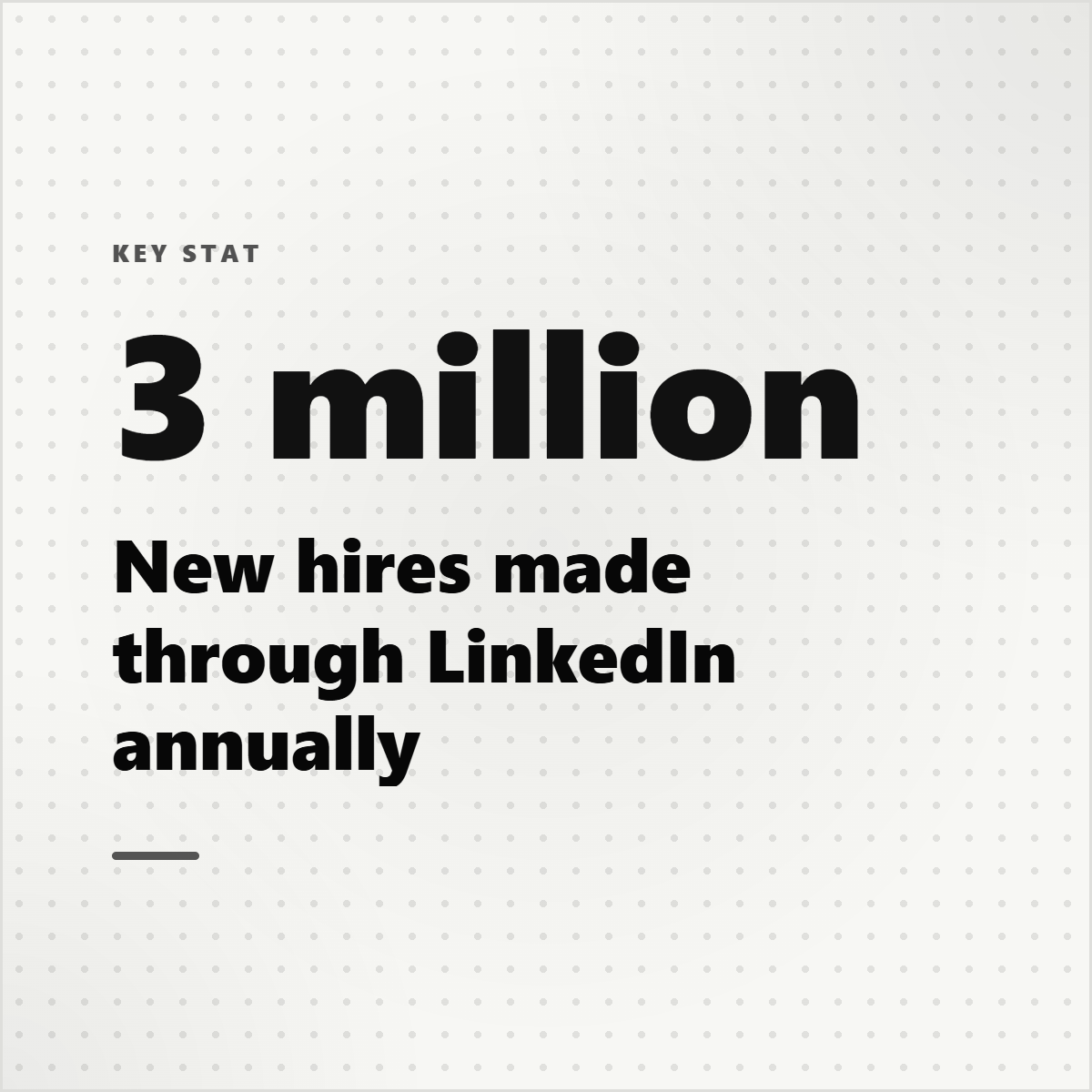





Best for
- Product updates, customer proof, launch posts, UI callouts, and receipts.
- Turning webpages, app screens, posts, and documents into polished visuals.
- Adding annotations, captions, and brand styling to raw images.
Not best for
- Hiding important details behind excessive blur or decoration.
- Posting screenshots that are unreadable on mobile.
- Using private customer data without permission.
Manual workflow
- 1Capture the screenshot.
- 2Crop and resize it for the target platform.
- 3Add background, padding, shadows, mockup frame, or callouts.
- 4Export and check readability on mobile.
Highlightly workflow
- 1Use screenshot, media, page, or uploaded image workflows.
- 2Choose screenshot cards, browser mockups, social mockups, or LightboxStudio edits.
- 3Add captions, annotations, spotlight effects, padding, themes, and brand controls.
- 4Export as a polished PNG.
Step by step
Crop to the point
Remove extra browser chrome, blank space, or unrelated UI.
Add structure
Use padding, frame, mockup, or background so the screenshot feels intentional.
Annotate sparingly
Highlight one thing at a time with callouts, arrows, or spotlight effects.
Export for the platform
Check 1:1, 4:5, 9:16, and 16:9 depending on where you will post.
Common questions
Can Highlightly edit screenshots?
Yes. Highlightly supports screenshot cards, mockup styles, annotations, captions, backgrounds, and LightboxStudio edits.
What makes a screenshot good for LinkedIn?
A good LinkedIn screenshot is readable on mobile, has one clear point, and uses framing or annotation to guide attention.
Can screenshots use brand styling?
Yes. Highlightly can apply brand kit colors, logos, typography, watermarks, and handles across exports.